Dify Now Supports IRIS as a Vector Store — Setup Guide
Why This Integration Matters
InterSystems continues to push AI capabilities forward natively in IRIS — vector search, MCP support, and Agentic AI capabilities. That roadmap is important, and there is no intention of stepping back from it.
But the AI landscape is also evolving in a way that makes ecosystem integration increasingly essential. Tools like Dify — an open-source, production-grade LLM orchestration platform — have become a serious part of enterprise AI stacks. In Japan in particular, Dify adoption is no longer just for startups or hobbyists; it has reached large enterprises, with employees using it as the backbone of internal AI workflows. Meeting developers and teams where they already are is as valuable as building new capabilities in isolation.
That's the motivation behind this integration: IRIS handles what it does best — reliable, queryable, SQL-accessible data with built-in processing logic — while Dify handles LLM orchestration, RAG pipelines, and agentic workflows. Together, they form a stack where IRIS users don't have to choose between their data infrastructure and the AI tools gaining momentum around them.
This integration was contributed to Dify as an OSS pull request and merged in Dify v1.11.2 (#29480). Several follow-up fixes have been merged since — covered below. This article walks through the setup.
First, I'd like to thank @Megumi Kakechi for encouraging me to post this on the English Developer Community — this would have remained a Japanese-only article without that push. I'd also like to extend my gratitude to @Tomohiro Iwamoto and @Mihoko Iijima, who took the time to test this integration hands-on and provided invaluable feedback that helped shape the fixes included in later releases.
OSS Background: If you're curious about the contribution journey itself, I wrote about it on Zenn: 「このDB、もっと知られてもいいのでは?」からOSSコントリビュートに至った話 (Japanese)
Prerequisites
| Tool | Notes |
|---|---|
| Docker / Docker Compose | Any recent version |
| Git | For cloning the Dify repository |
Setup
1. Clone the Dify repository
> git clone https://github.com/langgenius/dify.git
> cd dify/docker
2. Prepare the environment file
> cp .env.example .env3. Enable IRIS as the vector store
Open .env and change one line:
# Before (default)
VECTOR_STORE=weaviate

# After
VECTOR_STORE=iris
That's the minimum. IRIS connection defaults are pre-configured for local use. To connect to an existing IRIS instance or customize the setup, the relevant parameters are:
| Parameter | Default | Description |
|---|---|---|
IRIS_HOST |
iris | Container service name |
IRIS_SUPER_SERVER_PORT |
1972 | SuperServer port |
IRIS_WEB_SERVER_PORT |
52773 | Management Portal port |
IRIS_USER |
_SYSTEM | Login username |
IRIS_PASSWORD |
Dify@1234 | Set automatically on first launch |
IRIS_DATABASE |
USER | Target namespace |
IRIS_SCHEMA |
dify | SQL schema for Dify tables |
IRIS_TEXT_INDEX |
true | Enable full-text index |
IRIS_TEXT_INDEX_LANGUAGE |
en | Language for text indexing |
IRIS_MIN_CONNECTION |
1 | Connection pool minimum |
IRIS_MAX_CONNECTION |
3 | Connection pool maximum |
IRIS_TIMEZONE |
UTC | Timezone setting |
4. Start the containers
> docker compose up -d5. Confirm all containers are running
> docker compose psLook for the iris container with a STATUS of Up:
> docker % docker compose ps --format "table {{.Name}}\t{{.Service}}\t{{.Status}}"
NAME                     SERVICE         STATUS
docker-api-1             api             Up
docker-db_postgres-1     db_postgres     Up (healthy)
docker-nginx-1           nginx           Up
docker-plugin_daemon-1   plugin_daemon   Up
docker-redis-1           redis           Up (healthy)
docker-sandbox-1         sandbox         Up (healthy)
docker-ssrf_proxy-1      ssrf_proxy      Up
docker-web-1             web             Up
docker-worker-1          worker          Up
docker-worker_beat-1     worker_beat     Up
iris                     iris            Up   <-- this one
Access Dify
Navigate to http://localhost/ in your browser. On first launch you'll be prompted to create an admin account.
Verify IRIS is Storing Your Vectors
Step 1 — Create a Knowledge Base
- Log in to Dify
- Go to Knowledge → Create Knowledge
- Upload a text file or PDF
- In Step 2, under Index Method, select "High Quality" (recommended)
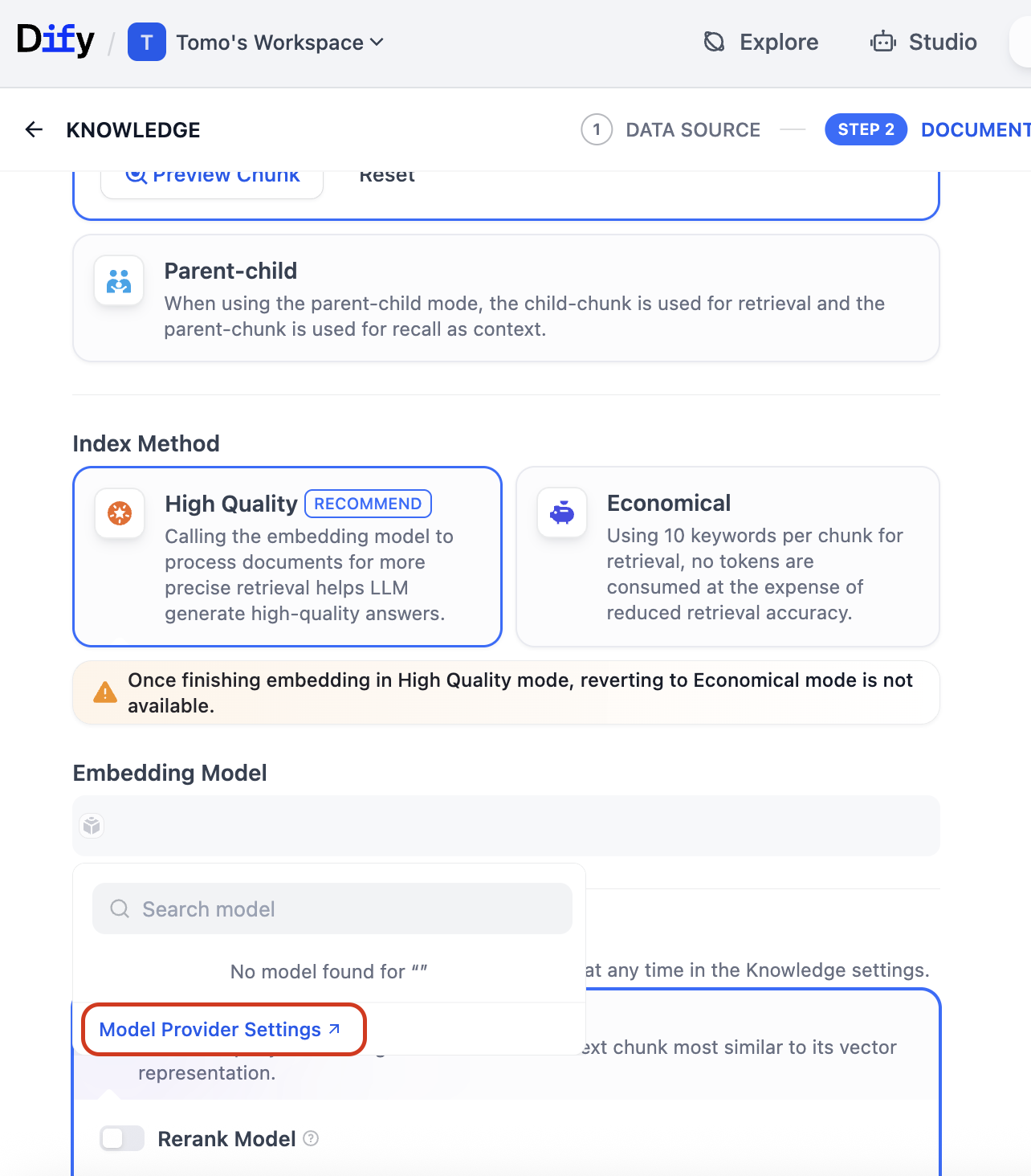
If no Embedding Model has been configured yet, the dropdown will show "No model found." Click "Model Provider Settings" at the bottom of the dropdown to proceed.
Step 2 — Set Up a Model Provider (OpenAI)
The Model Provider screen lists available providers. Find OpenAI and click Install.
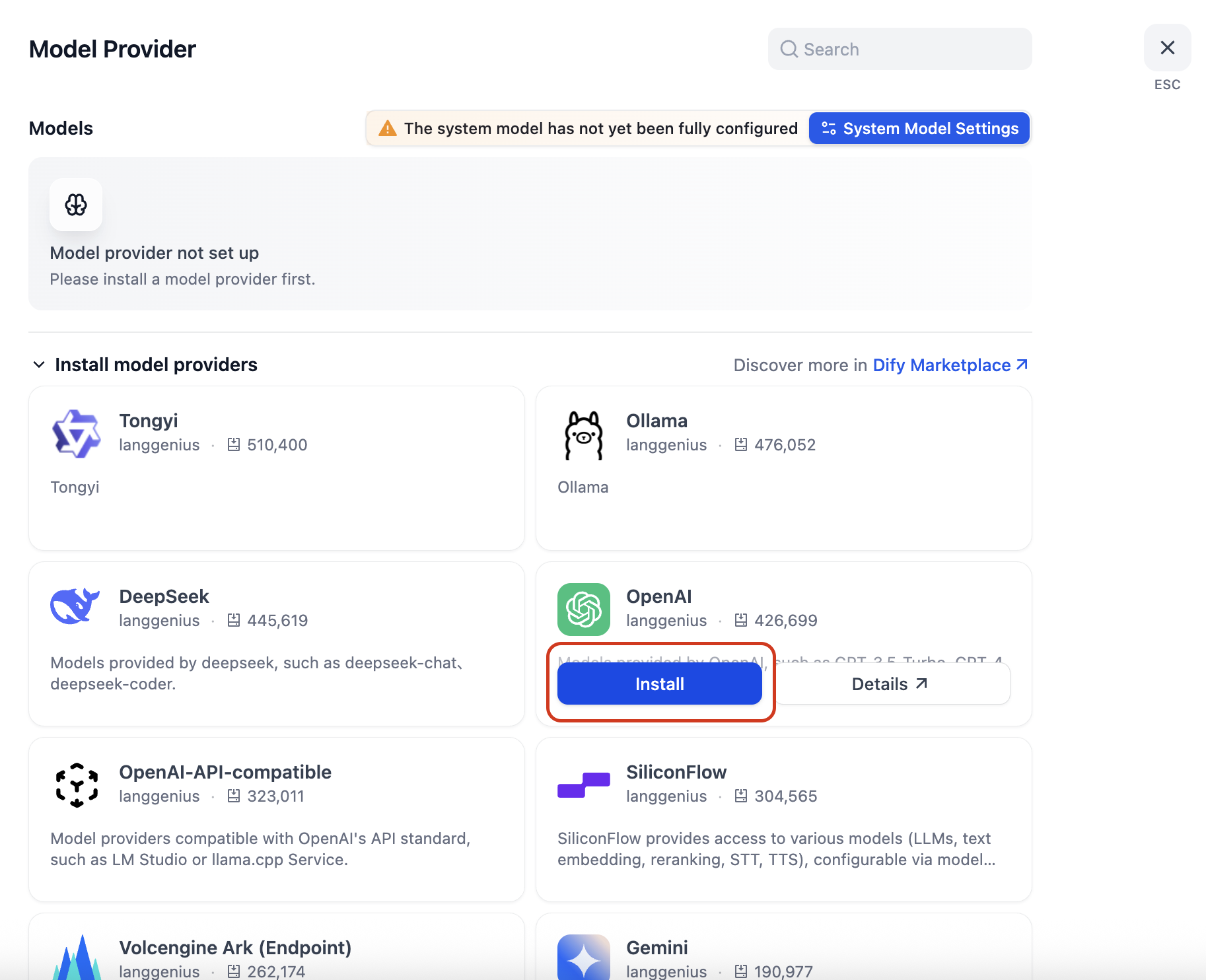
Note on cost: OpenAI requires an API key separate from a ChatGPT Plus subscription — you'll need to add credits to your OpenAI API account. Embedding costs are extremely low, however; a few dollars will go a long way. If you'd prefer a free alternative, local models via LM Studio or Ollama (OpenAI-API-compatible) are also supported.
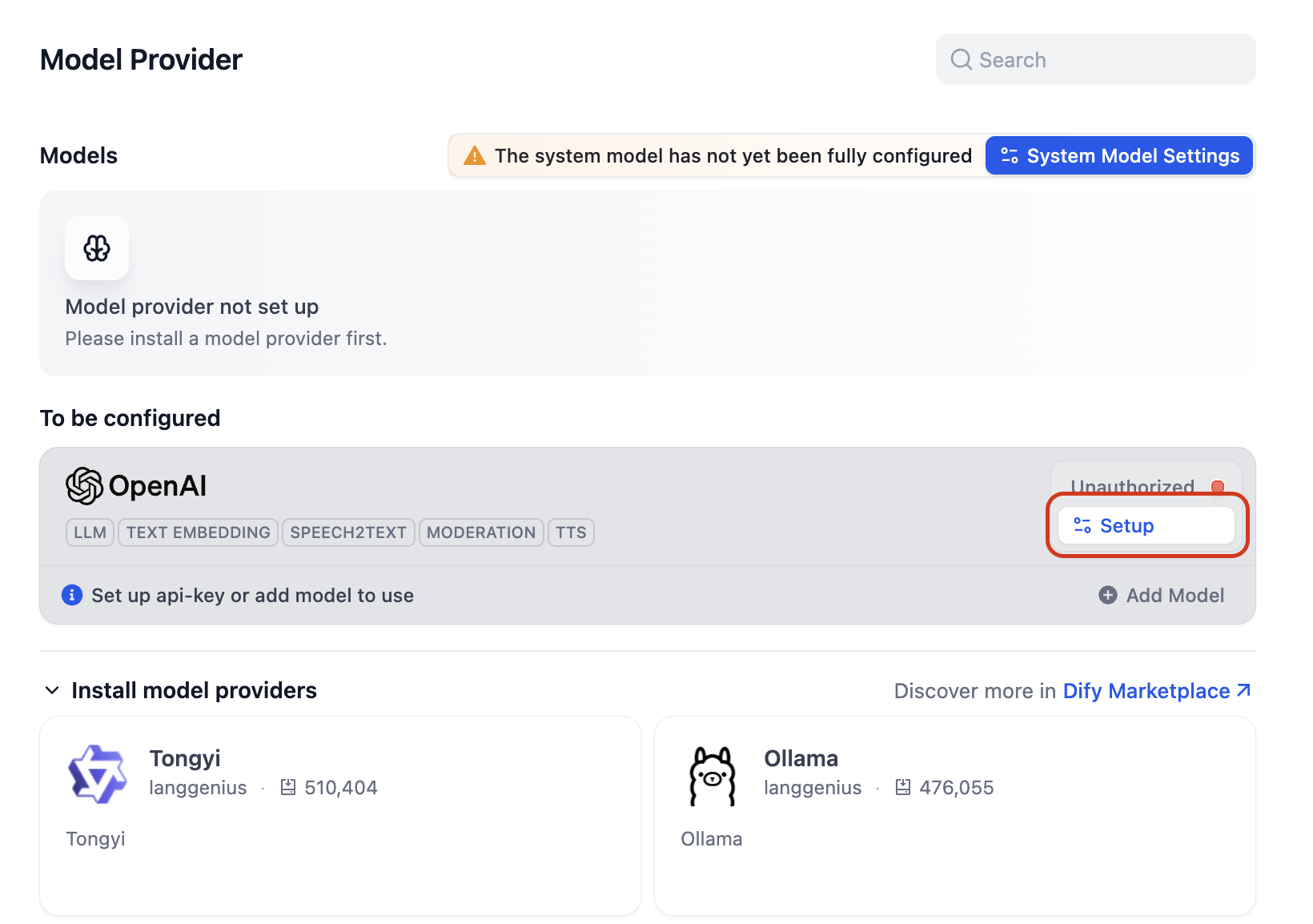
After installation, OpenAI appears under "To be configured". Click Setup.
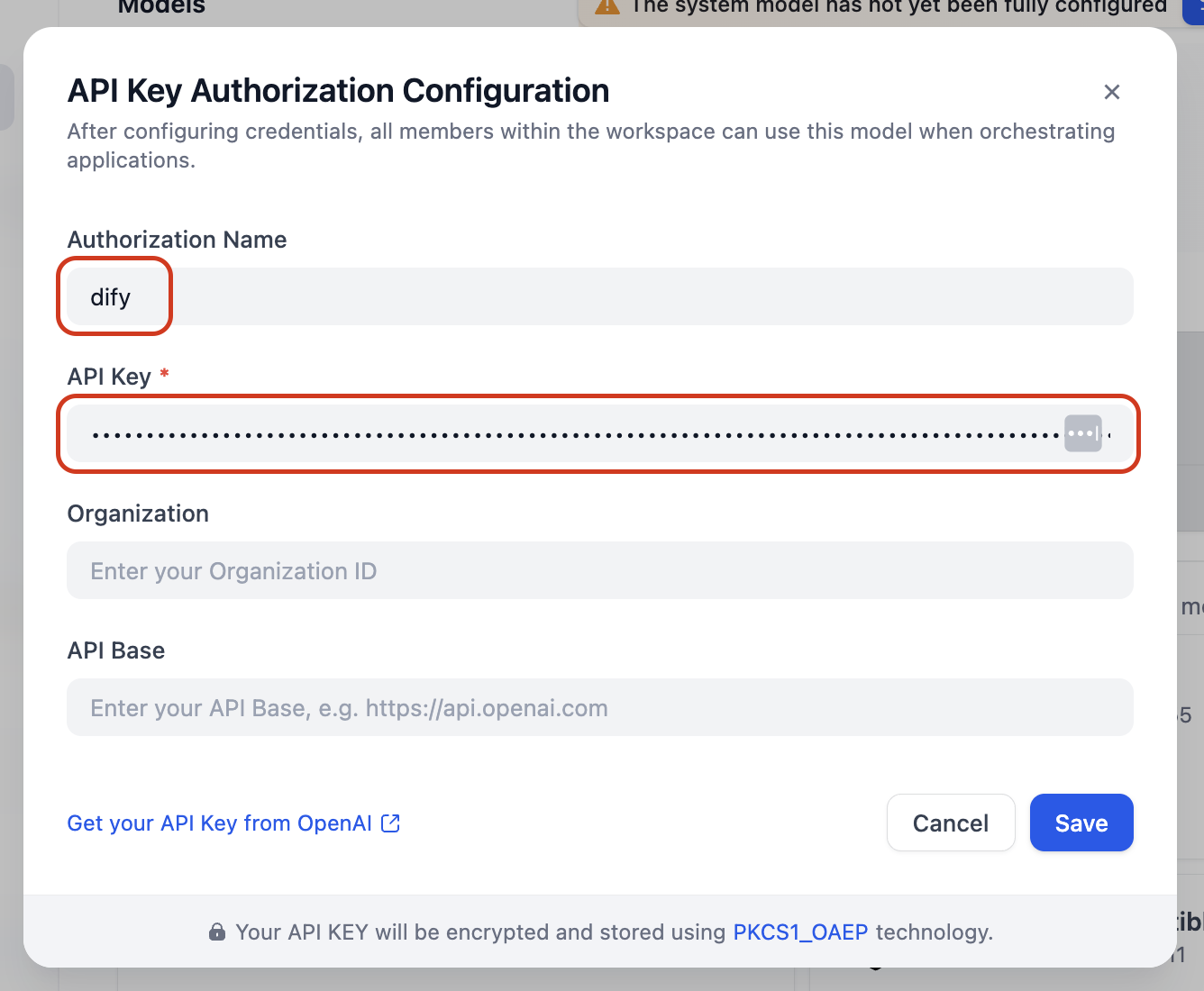
The API Key Authorization Configuration dialog opens. If you don't have an API key yet, click "Get your API Key from OpenAI" to open the OpenAI API keys page directly.
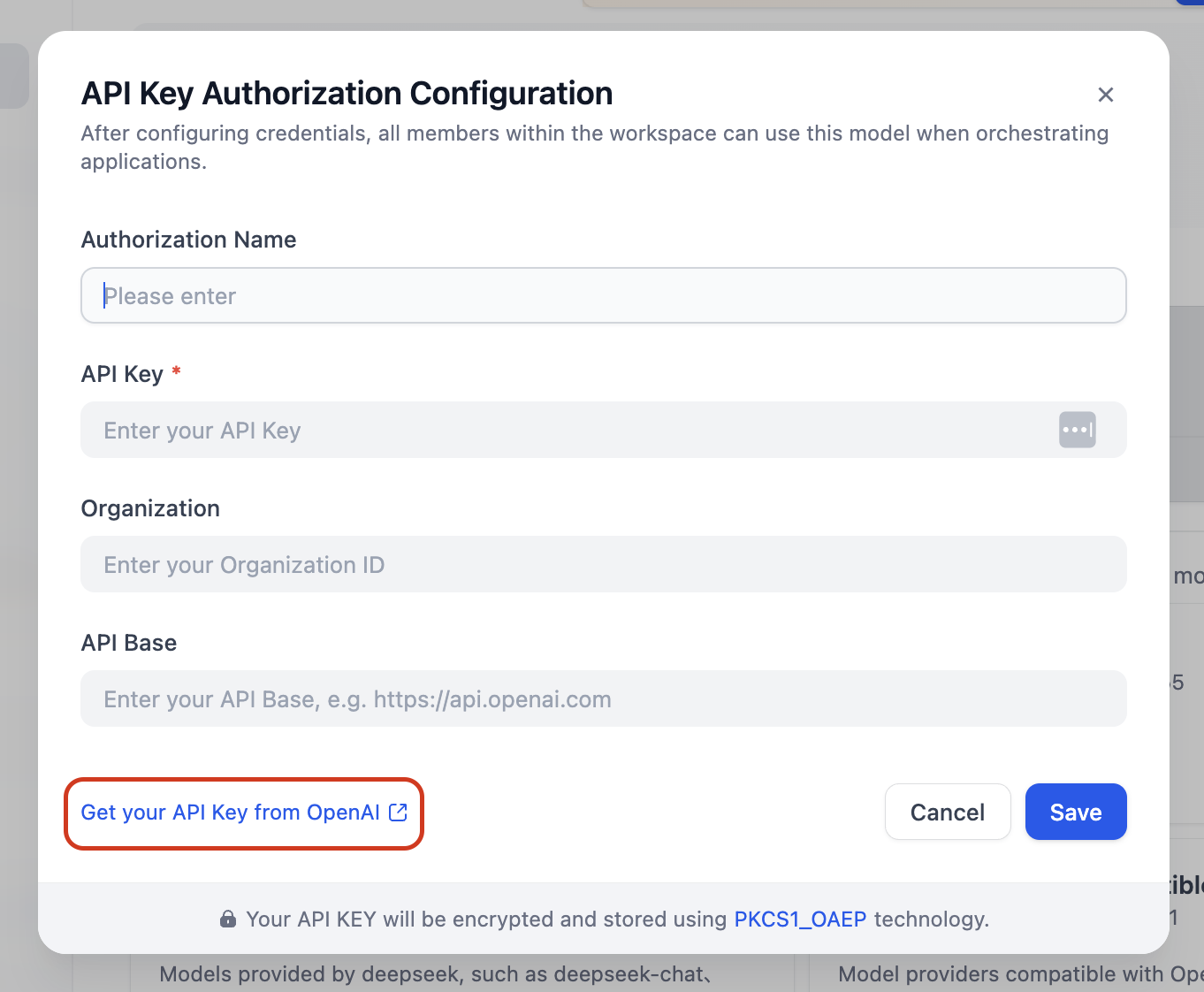
Enter a name (e.g. dify), paste your API key, then click Save.
Step 3 — Select the Embedding Model
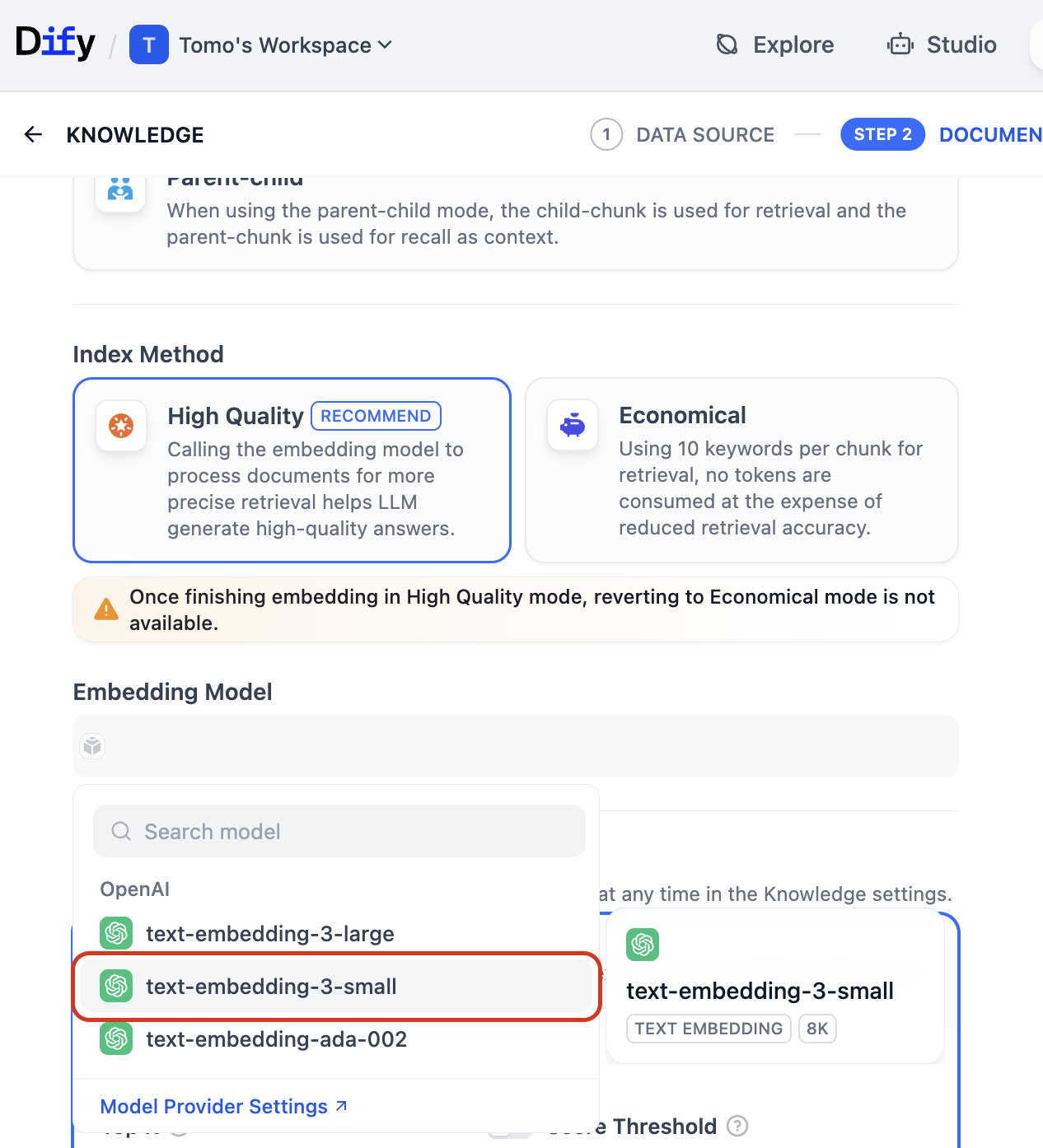
Return to the Knowledge creation screen. The Embedding Model dropdown now lists available OpenAI models. Select text-embedding-3-small — it offers an excellent balance of cost and retrieval quality for most use cases.
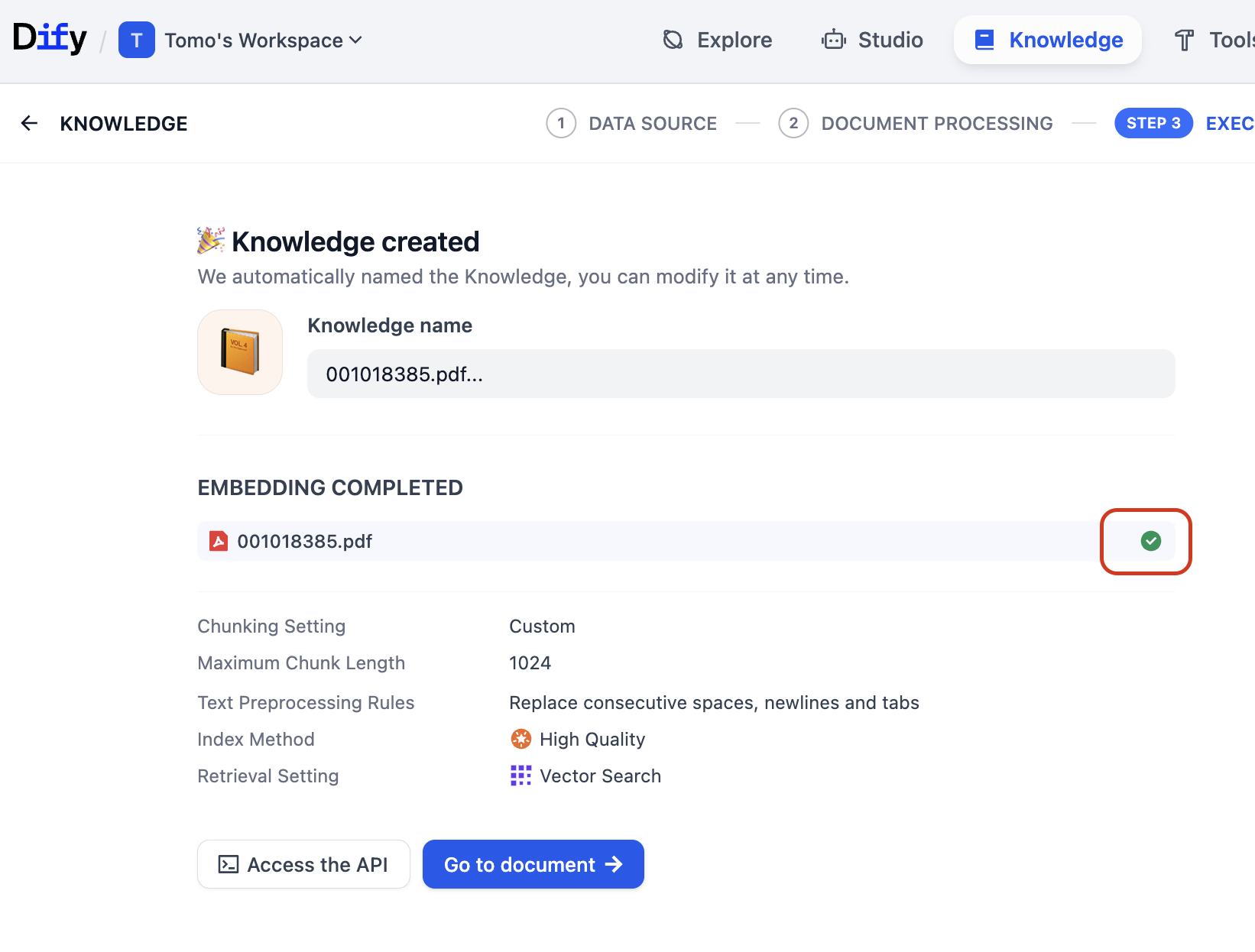
Click Save & Process. When a green checkmark appears next to your document, embedding is complete — your document chunks are now stored as vectors in IRIS.
Step 4 — Inspect the Data via Management Portal
This is where IRIS users have a distinct advantage. Open the Management Portal:
http://localhost:52773/csp/sys/UtilHome.csp?$NAMESPACE=USER| Field | Value |
|---|---|
| Username | _SYSTEM |
| Password | Dify@1234 |
Navigate to System Explorer → SQL, set the schema filter to dify, and the tables Dify created will appear. Open one, and you'll see your document chunks — including the raw vector embeddings — stored exactly as you'd expect from any IRIS table.
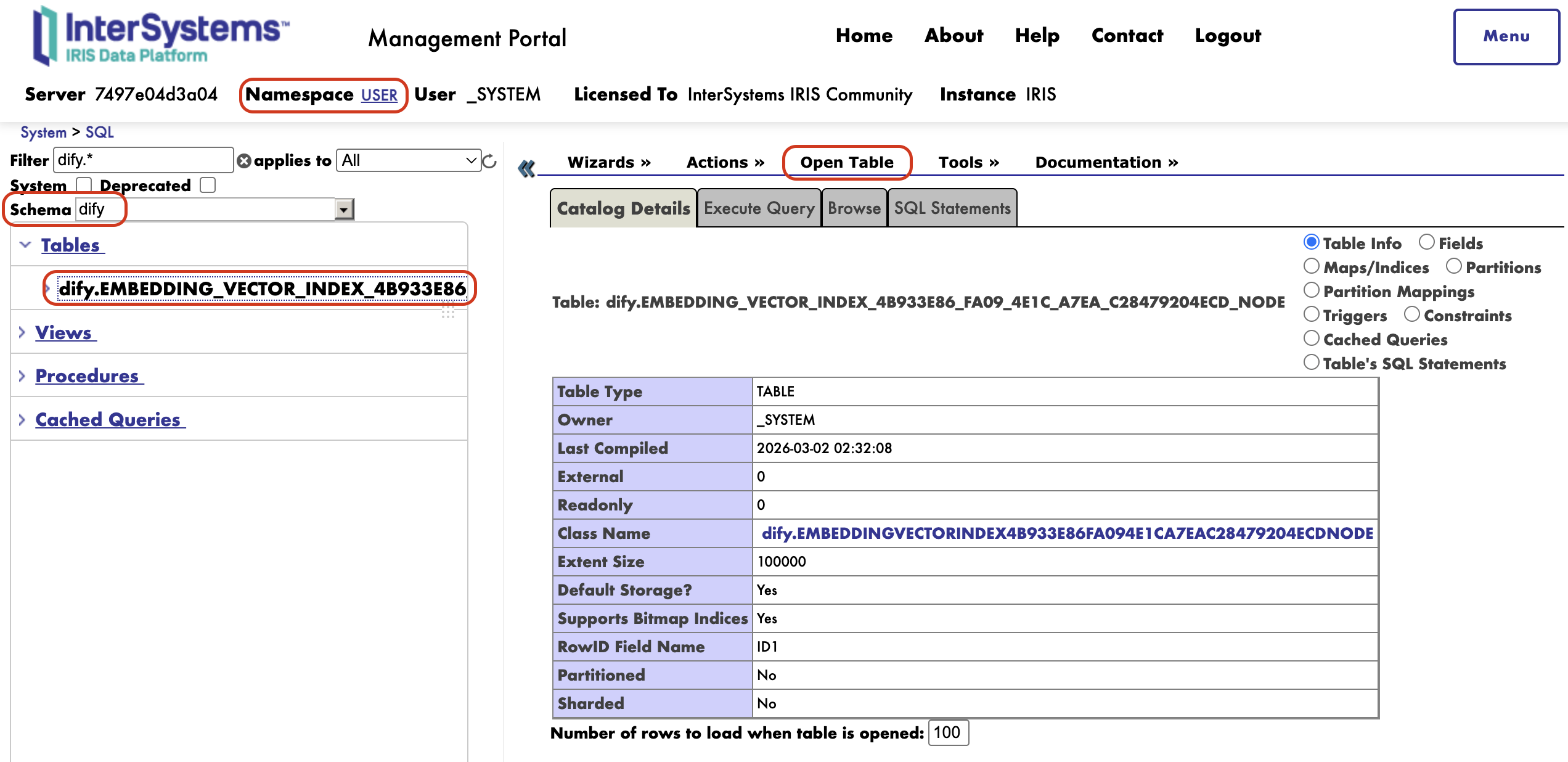
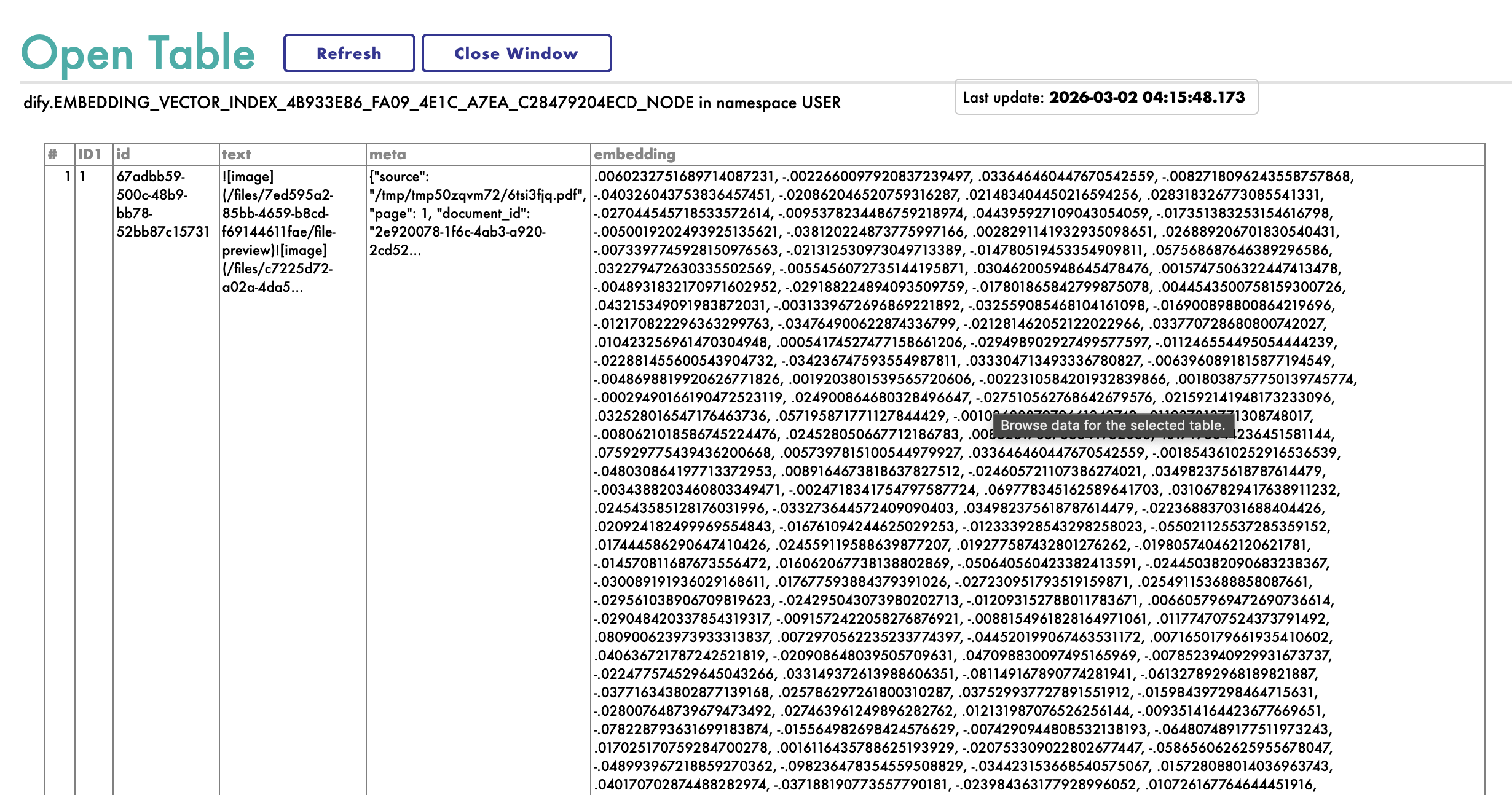
The IRIS Advantage: With most vector stores, embedding data is opaque — accessible only through a proprietary API. With IRIS, you have full SQL access. Query vector data directly, join it against operational data already in your namespace, inspect what's been indexed, or build custom retrieval logic on top of it. That's a meaningful capability for teams already invested in the IRIS ecosystem.
What's Been Fixed Since the Initial Release
The initial integration shipped in v1.11.2 with some rough edges. All known issues have since been resolved and merged into the official Dify codebase.
| PR | Release | Description |
|---|---|---|
| #29480 | v1.11.2 | Initial IRIS vector store support |
| #31309 | post-v1.11.2 | Fix full-text search and hybrid search for IRIS backend |
| #31899 | v1.12.1 | Fix IRIS data persistence across container recreation using Durable %SYS |
| #31901 | v1.12.1 | Further improvements to Durable %SYS data persistence |
Note on Durable %SYS: Without the fixes in #31899 and #31901, IRIS data could be lost on container recreation — a common issue with the Community Edition Docker image. IRIS developers will recognize Durable %SYS immediately; these fixes ensure the Docker setup respects it correctly.
Troubleshooting
IRIS container fails to start on Windows
On Windows, the IRIS container may fail to start due to volume directory permission issues. Run the following from the docker directory before starting the containers:
chmod -R 777 ./volumes/irisNote: This is a known limitation on Windows host environments. A fix to eliminate this step is planned for a future release.
IRIS container fails to start (high core count)
On machines with high core counts, IRIS Community Edition's 20-core limit may be triggered. Add the following to the iris service in docker-compose.yml:
services:
  iris:
    cpuset: "0-19"
Summary
| What | How |
|---|---|
| Enable IRIS in Dify | Set VECTOR_STORE=iris in .env |
| Verify stored vectors | Management Portal → SQL → schema: dify |
| Data persistence | Handled by Durable %SYS (fixed in v1.12.1) |
| Community Edition | Free · 10 GB data · Up to 20 cores |
A follow-up post will walk through building a full RAG chatbot on this stack. Questions or issues — drop them in the comments below.
References
Comments
Great article, thank you for bringing it to the English Developer Community 🙏
The Japanese team keeps contributing not only to the JP Community, but to the global one too. We really appreciate you sharing knowledge across languages and regions!
ありがとうございます! Thank you for the excellent and detailed post about Dify and IRIS.