查找

Article
· May 3, 2024 6m read

Demo: Connecting Locally to an S3 Bucket without an AWS Account

Introduction

Accessing Amazon S3 (Simple Storage Service) buckets programmatically is a common requirement for many applications. However, setting up and managing AWS accounts is daunting and expensive, especially for small-scale projects or local development environments. In this article, we'll explore how to overcome this hurdle by using Localstack to simulate AWS services. Localstack mimics most AWS services, meaning one can develop and test applications without incurring any costs or relying on an internet connection, which can be incredibly useful for rapid development and debugging. We used ObjectScript with embedded Python to communicate with Intersystems IRIS and AWS simultaneously. Before beginning, ensure you have Python and Docker installed on your system. When Localstack is set up and running, the bucket can be created and used. 

Creating an S3 Bucket from ObjectScript with Embedded Python

Now that LocalStack is running, let's create an S3 bucket programmatically. We'll use Python and the Boto3 library - a Python SDK for AWS services. Take a look at the MakeBucket method provided in the S3UUtil class. This method utilizes Boto3 to create an S3 bucket:

ClassMethod MakeBucket(inboundfromiris As %String) As %Status [ Language = python ]

{

    import boto3

    s3 = boto3.client(

        service_name='s3', 

        region_name="us-east-1", 

        endpoint_url='http://host.docker.internal:4566', 
    )

    try:

        s3.create_bucket(Bucket=inboundfromiris)

        print("Bucket created successfully")

        return 1
    except Exception as e:

        print("Error:", e)

        return 0
}

To create a bucket, you would call this method with the desired bucket name:

status = S3UUtil.MakeBucket("mybucket")

Uploading Objects to the Bucket from ObjectScript with Embedded Python

Once the bucket is created, you can upload objects to it programmatically. The PutObject method demonstrates how to achieve this:

ClassMethod PutObject(inboundfromiris As %String, objectKey As %String) As %Status [ Language = python ]

{

    import boto3

    try:

        content = "Hello, World!".encode('utf-8')

        s3 = boto3.client(

            service_name='s3',

            region_name="us-east-1",

            endpoint_url='http://host.docker.internal:4566'
        )

        s3.put_object(Bucket=inboundfromiris, Key=objectKey, Body=content)

        print("Object uploaded successfully!")

        return 1
    except Exception as e:

        print("Error:", e)

        return 0
}

Call this method to upload an object:

Do ##class(S3.S3UUtil).PutObject("inboundfromiris", "hello-world-test")


Listing Objects in the Bucket from ObjectScript with Embedded Python

To list objects in the bucket, you can use the FetchBucket method:

ClassMethod FetchBucket(inboundfromiris As %String) As %Status [ Language = python ]

{

    import boto3

    s3 = boto3.client(

        service_name='s3', 

        region_name="us-east-1", 

        endpoint_url='http://host.docker.internal:4566', 
    )

    try:

        response = s3.list_objects(Bucket=inboundfromiris)

        if 'Contents' in response:

            print("Objects in bucket", inboundfromiris)

            for obj in response['Contents']:

                print(obj['Key'])

            return 1
        else:

            print("Error: Bucket is empty or does not exist")

            return 0
    except Exception as e:

        print("Error:", e)

        return 0
}

Call the FetchBucket method to list objects from the bucket:

do ##class(S3.S3UUtil).FetchBucket("inboundfromiris")


Retrieving Objects from the Bucket from ObjectScript with Embedded Python

Finally, to retrieve objects from the bucket, you can use the PullObjectFromBucket method:

ClassMethod PullObjectFromBucket(inboundfromiris As %String, objectKey As %String) As %Status [ Language = python ]

{

    import boto3

    def pull_object_from_bucket(bucket_name, object_key):

        try:

            s3 = boto3.client(

                service_name='s3', 

                region_name="us-east-1", 

                endpoint_url='http://host.docker.internal:4566', 
            )

            obj_response = s3.get_object(Bucket=bucket_name, Key=object_key)

            content = obj_response['Body'].read().decode('utf-8')

            print("Content of object with key '", object_key, "':", content)

            return True

        except Exception as e:

            print("Error:", e)

            return False

    pull_object_from_bucket(inboundfromiris, objectKey)

}

Call this method:

Do ##class(DQS.CloudUtils.S3.S3UUtil).PullObjectFromBucket("inboundfromiris", "hello-world-test")


The discussion here is just the beginning, as it's clear there's plenty more ground to cover. I invite readers to dive deeper into this subject and share their insights. Let's keep the conversation going and continue advancing our understanding of this topic.

I'm eager to hear thoughts and contributions.

Discussion (0)1
Log in or sign up to continue
Announcement
· May 3, 2024

VS Code release April 2024 (version 1.89)


Visual Studio Code releases new updates every month with new features and bug fixes, and the April 2024 release is now available. 

Version 1.89 includes:

The release also includes contributions from our very own @John Murray through pull requests that address open issues. 

Find out more about these features in the release notes here > https://code.visualstudio.com/updates/v1_89

For those with VS Code, your environment should auto-update. You can manually check for updates by running Help > Check for Updates on Linux and Windows or running Code > Check for Updates on macOS.

If you're thinking about migrating from Studio to VS Code but need some help, take a look at the training courses George James Software offers > https://georgejames.com/migration-from-studio/

Discussion (0)2
Log in or sign up to continue
Question
· May 3, 2024

What's the most recent non-preview Community Edition Container?

It's not clear to me, when using the InterSystems Container Repository, which version is the best / most recent non-preview Community Edition version to use.

I see lots of 2023.2.x versions, a single 2023.3 and 2024.1 version, but also a latest-cd and latest-em (with no explanation as to what cd and em mean).

I assume the trick is to use one of the latest-xx ones?  If so, which?

Unfortunately I haven't been able to find any explanatory information anywhere about the nomenclature conventions used.

Many thanks

5 Comments
Discussion (5)3
Log in or sign up to continue
Article
· Apr 30, 2024 2m read

Monitoring InterSystems IRIS environments with Red Hat Insights

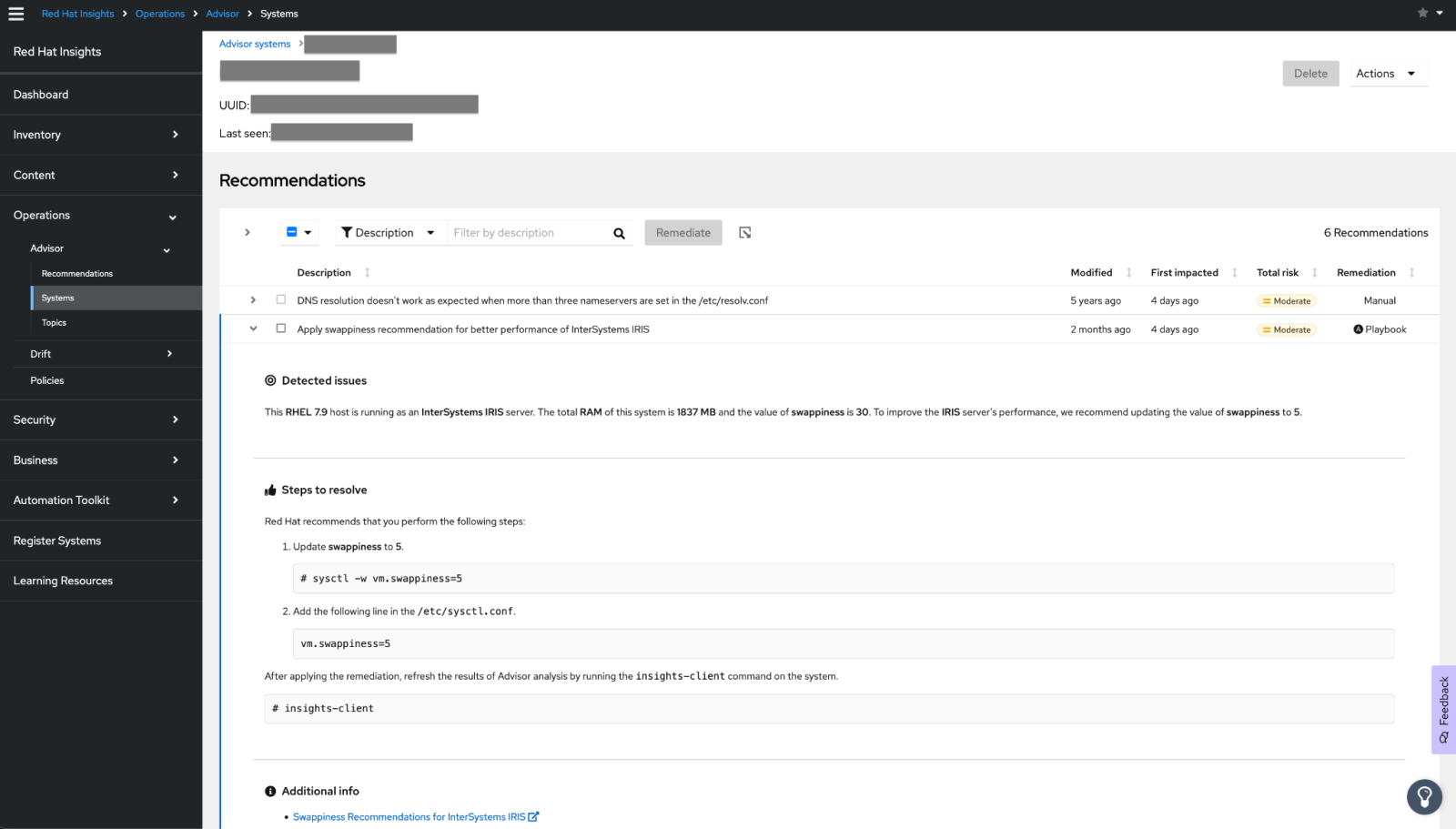
InterSystems worked closely with the Red Hat Insights team to implement a curated set of recommendations for system administrators to ensure the best experience running InterSystems IRIS on Red Hat Enterprise Linux (RHEL). Included with all RHEL subscriptions, the Insights service proactively identifies potential issues with monitored platforms and applications running on RHEL. Through our joint collaboration, Insights now watches for common scenarios that decrease the performance of IRIS in most cases and offers an InterSystems-approved recommendation for consideration.  

Ten recommendations are currently implemented and can be found under the “InterSystems” topic within the Insights Advisor service.  Advisor recommendations help in areas including:

  1. Performance Tuning Guidance. We provide best practices for configuring HugePages, Transparent HugePages (THP), swappiness, shmmax kernel parameters, and more.
  2. Product Compatibility. Insights highlights which versions of InterSystems products are encouraged to be used to provide the best experience.
  3. Journaling and High-availability Configuration Suggestions, like Write Image Journaling (WIJ) drive mapping, identifying an arbiter to support automatic failure, or enabling FreezeOnError for better integrity and recoverability of InterSystems IRIS database.

Every recommendation contains details about the detected RHEL version, InterSystems IRIS instance information, and system-specific step-by-step instructions to remediate the detected issue.  Links to the InterSystems documentation are also provided for further reference.

Enable Insights with InterSystems today.

Registering your systems with Red Hat Insights is very straightforward and typically requires only a single command to be executed. Alternatively, the Red Hat registration assistant application can be used to complete the necessary steps based on your setup. Analysis of InterSystems IRIS workloads does not require additional steps and is enabled once systems are registered with Insights. Specific recommendations can easily be turned off if they are not applicable to your environment.  

Head to Red Hat Insights to learn more about the service and get started with the registration assistant.

Talk with Red Hat experts at InterSystems Global Summit 2024.

Red Hat will be exhibiting at InterSystems Global Summit June 9-12 and available to discuss Insights and other Red Hat capabilities.

2 Comments
Discussion (2)3
Log in or sign up to continue
Article
· Apr 27, 2024 2m read

Recherche vectorielle géographique #1

Utilisation géographique de la recherche vectorielle

L'idée de base est d'utiliser des vecteurs au sens mathématique.
J'ai utilisé des coordonnées géographiques. Celles-ci ne sont bien sûr que bidimensionnelles
mais elles sont beaucoup plus faciles à suivre en tant que vecteurs dans le cadre d'une analyse de texte à plus de 200 dimensions.

L'exemple charge une liste de capitales mondiales avec leurs coordonnées
Les coordonnées sont interprétées comme des vecteurs à partir du point géographique 0°N/0 W
(un point très humide dans le golfe de Guinée, à plus de 400 km de la côte africaine).
Trouver des directions communes à partir de ce point est tout à fait théorique.
L'ajustement à votre point de départ préféré est donc mis en œuvre.
Il est maintenant logique de trouver des directions similaires pour une ville cible.
Il s'agit d'une utilisation mathématique de la fonction VECTOR_COSINE() autre que la recherche de texte.

Et comme il ne s'agit que de 2 dimensions, la COSINE correspond à ce que nous avons (espérons-le) appris à l'école.
Les résultats sont donc beaucoup plus faciles à comprendre : 

  • 1 = correspondance totale, même direction, écart de 0° par rapport à l'original
  • 0 = pas de correspondance du tout, la direction est éloignée de 90° de l'original
  • -1 = direction totalement opposée, pointant vers l'arrière de 180° par rapport à l'original
  •  ~0,999 = très proche de l'original 

Vous obtenez simplement des informations sur la direction, pas sur la taille.
Ainsi, votre vecteur de Paris à Budapest pointe également vers Minsk ou un autre endroit en Asie.

La démo est contrôlée par un menu plus simple :

  Use Geographc Vectors
=========================
     1 - Initialize Tables
     2 - Import Data
     3 - Set Base Location
     4 - Generate Vectors
     5 - Select Target Location
     6 - Show Best Matches
Select Function or * to exit :

pour plusieurs tentatives, vous redémarrez toujours à

  • #3. Définir le lieu de départ
  • #4. Ajustez les coordonnées à la base que vous avez choisie
  • #5. Définissez votre emplacement cible en définissant votre vecteur de base.
  • #6 voir ce qui se trouve entre ou devant votre vecteur
    • ajuster la tolérance de -1...+1

GitHub

Video

DemoServer Mgmt Portal
DemoServer WebTerminal
 

1 Comment
Discussion (1)1
Log in or sign up to continue