Small VS Code features that will boost your productivity
The official InterSystems VS Code extensions are packed with features that make developing with InterSystems products a breeze. Today I'd like to highlight some small but useful features that you may have missed.
Show All Class Members
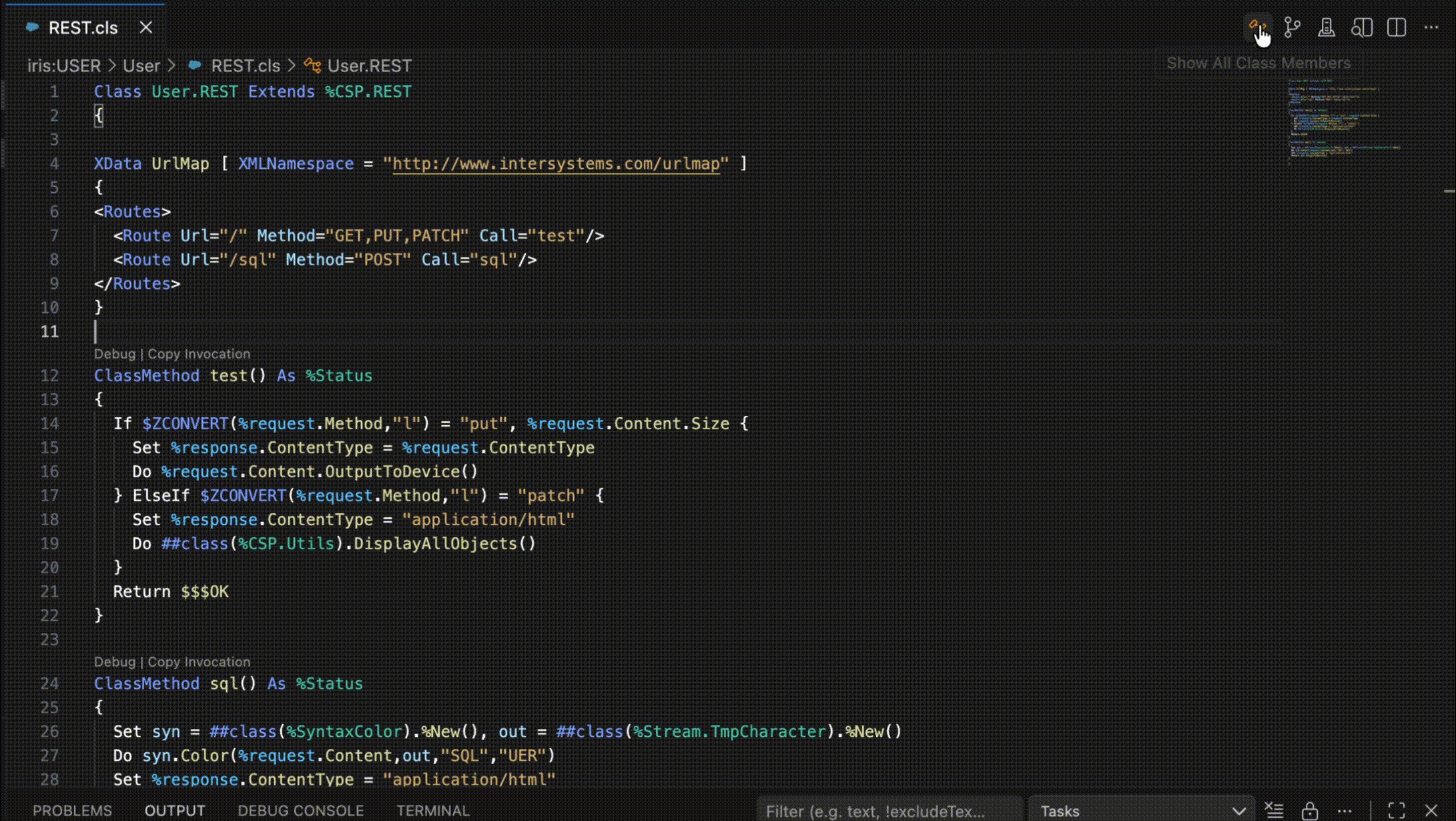
You can view all members of the current class, including inherited members, with the click of a button. Just click on the class icon in the top-right corner of the editor window and a filterable list of all members will appear. Clicking on one will reveal it in an editor tab.
Show Plan
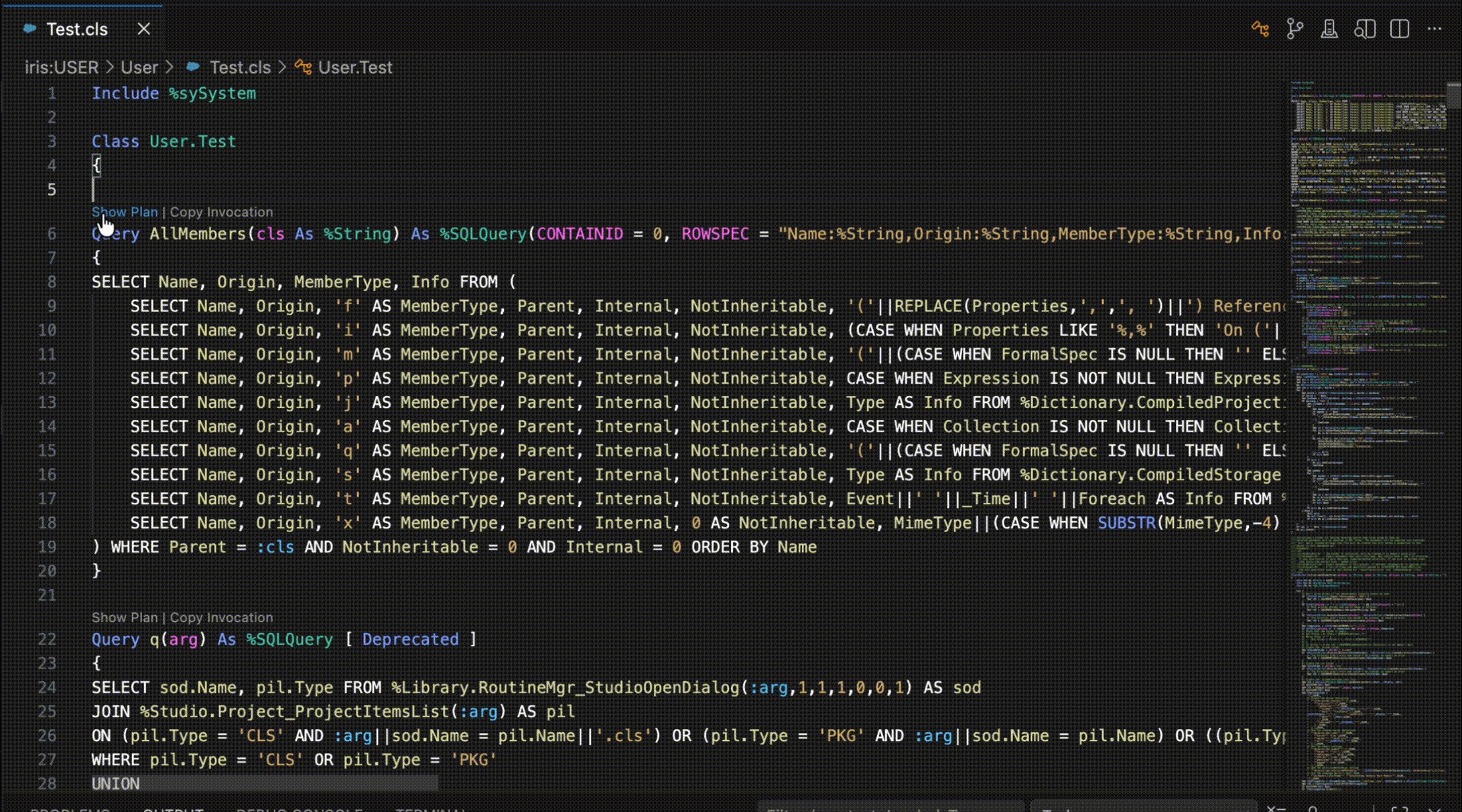
Using SQL in your ObjectScript code is a popular way to take advantage of InterSystems IRIS's powerful multi-model capabilities. However, writing performant SQL queries can be a challenge. That's why InterSystems added the ability to view the execution plan of SQL statements with one click right from your editor tab. Just click the Show Plan button above class queries and Embedded SQL statements and a webview displaying ther execution plan will appear beside your code.
Open InterSystems Document
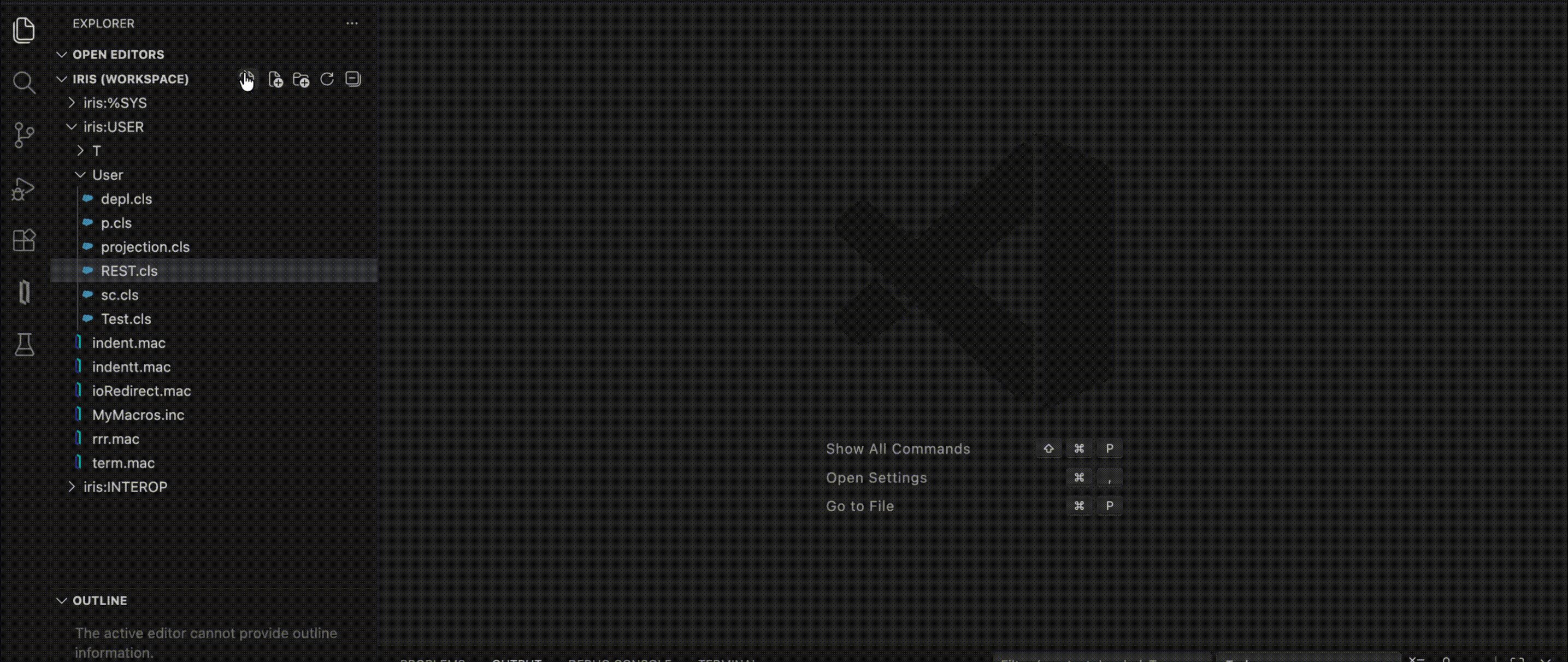
A neat feature of VS Code is that it allows you to have multiple root folders open at once. It's also common to have many files in each folder, which makes navigating to a file using the explorer UI cumbersome at times. While VS Code has commands for quickly opening a file by name, that is usually different than the InterSystems name for the document (for example, the file path for User.Test.cls will often be /User/Test.cls). In response to this discrepancy, InterSystems added a command to open a file using the InterSystems name for it. After selecting a workspace folder, a file explorer picker is shown. Users can browse for the file to open using it, or enter the name directly in the text box and press Enter. The command accepts dots for package separators and the short form for %Library classes.
Open Error Location
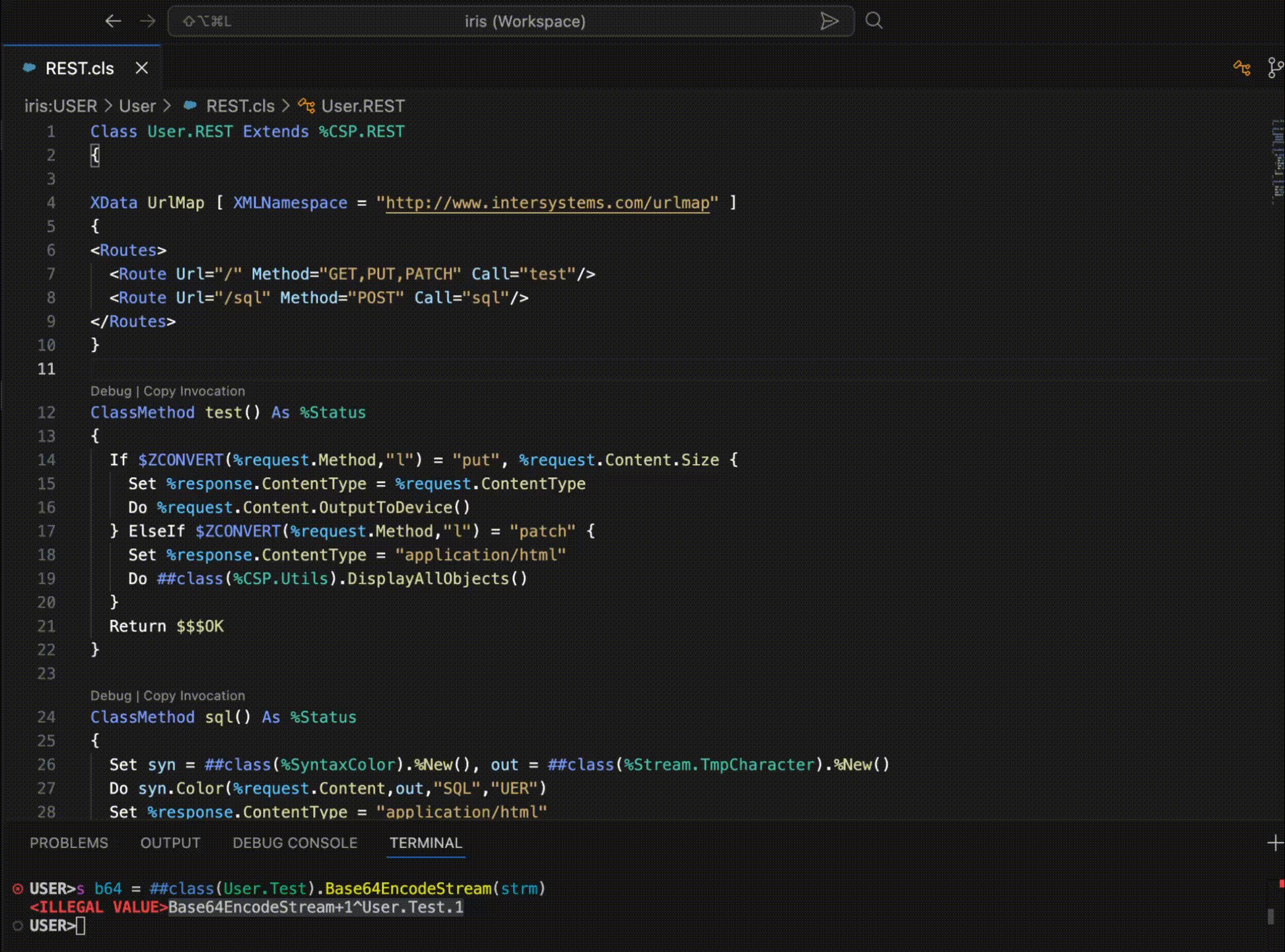
When trying to identify the cause of an error, a good first step is go to the source. If you have the error location handy, VS Code has a command that will open the exact line for you, even if it's in a generated routine that isn't in your workspace folder. From the command palette, type Open Error Location... and run the command. A text box will appear that accepts a location in an INT routine in the form label+offset^routine. Submitting the form will open that location in an editor tab if the source code exists. A user can then use the View Other command to open the equivalent line in the higher level source file if applicable.
As always, feedback and issues reports can always be made on GitHub. Thanks for reading and happy coding!
Comments
The open error location feature is specially helpful. I no longer have to count lines while trying to remember which type of comment counts as a line for offset purposes.
Here's an extension that also addresses the need targeted by Show All Class Members.
https://marketplace.visualstudio.com/items?itemName=georgejames.objects…
Just a brilliant article, but it needs more!
What I use daily:
- Cmd + Shift + P and Launch Lite Terminal
- Click on Server[Namespace] in the bottom status line - all commands in this menu are very helpful
- Material Icon Theme extension for beautiful icons in Project Explorer 🙃
- Peacock extension for separating namespaces/projects by color
A couple of keyboard shortcuts I like, though bear in mind I'm on Windows and these may not be the same on other platforms:
- F1 to get Command Palette with a single finger.
- F3 while focused on a tree gets me the find/filter widget.
Hooray for
- Show Plan
- Open Error Location
Great work and many thanks
@Brett Saviano Is there something needed to enable Show Plan. I checked my extensions and none of them say I need updating. Additionally while it is great to have the action to Show Plan for a class query, InterSystems Studio allowed us to select any text-Right Click-Show Plan. This is useful when either you have a Dynamic SQL statement inside of a method or you are using embedded SQL with or without a cursor such as
	&SQL(DECLARE Loop CURSOR FOR
			SELECT  %Id,Super
			INTO    :tClass,:tSuper
			FROM	  %Dictionary.CompiledClass
			WHERE	  %Id %STARTSWITH :Prefix AND GeneratedBy IS NULL AND COALESCE(Deployed,0)=0
              AND (Super not like '%DeepSee.KPIPlugIn')
			FOR READ ONLY
			)
		&SQL(OPEN Loop)
		For  {
&SQL(FETCH Loop)Hi @Stephen Canzano, Show Plan requires an active server connection to IRIS version 2024.1.0 or greater. I intentionally implemented this a CodeAction because I thought a one-click experience that includes imported packages and include files automatically was much better than what Studio offered. VS Code's show plan feature is supported for DECLARE queries. It does not support Dynamic SQL queries at this time.