[Quick tip] How to create an AI agent using Intersystems documentation in Teams
Hi everyone.
I'm going to give you a quick tip on how to implement an AI agent to search the Intersystems documentation integrated into Teams.
Yes, I know the documentation page has its own AI search engine and it's quite effective, but this way we'd have faster access, especially if Teams is your company's corporate tool.
You can also create another AI agent to search articles published in the developer community (which also has its own integrated AI search engine).
Step 1
Select the "Copilot" option
.png)
Step 2
Select the option "Create agent".
If you don't initially see this option, press the button that appears in the upper left.
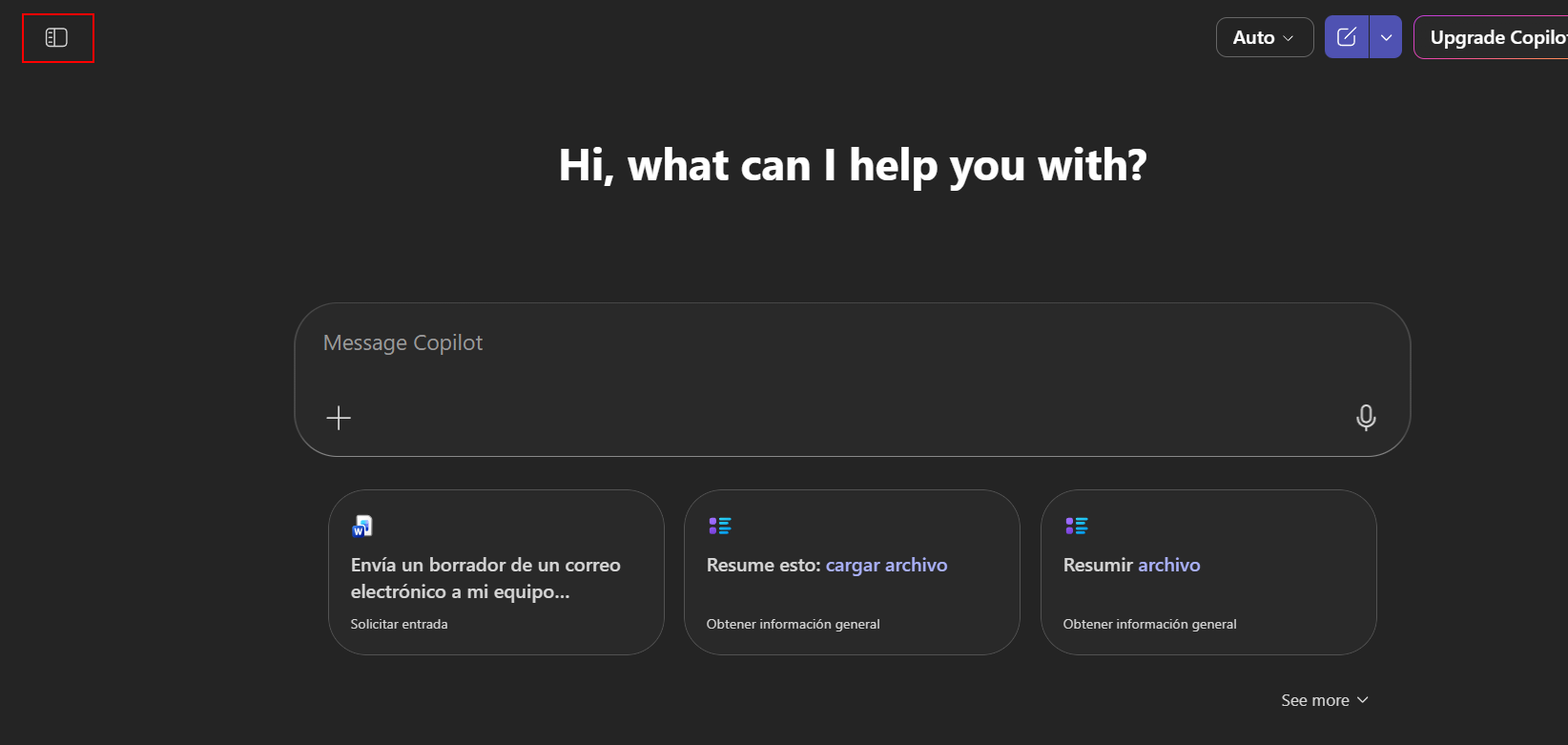 Step 3
Select the Configure option to avoid using existing templates.
Give your AI agent a name, for example, "Intersystems Docs," and a description. You can also customize the agent's icon.
In the "Instructions" section, add the following entries.
- The agent must search for information on the InterSystems website.
- Provide accurate and relevant answers based on the information found.
- Maintain a professional and clear tone in all interactions.
- Do not provide information that is unverified or not found on the InterSystems website.
- Guide the user to additional resources if necessary.
Add the URL to the Intersystems documentation
Note: If you want to create an agent that queries the developer community, use the following link:
https://community.intersystems.com
Or add both to make the search more complete.
.png)
Step 4
We can add prompt suggestions.
| Title | Message |
| Search for information | Can you search for information about [topic] on the InterSystems website? |
| Resource guide | Can you guide me to the resources available about [topic] on the InterSystems website? |
| Specific details | I need specific details about [topic] from the InterSystems website. |
| Latest updates | What are the latest updates about [topic] on the InterSystems website? |
.png) Press the "Create" button and that's it... we can now use our AI agent
Press the "Create" button and that's it... we can now use our AI agent
.png)
We can look up anything using our new agent; we can do it in any language, because it already has its translation included.
.png)
.png)
I hope you find it as useful as I have.