
Find

Article
· Apr 21, 2022 2m read

Globals - Comparar Embedded Python e ObjectScript

Este exemplo demonstra a diferença de quando você acessa globais diretamente do
Embedded Python (ePy) comparado com o ObjectScript nativo (ISOS).

Para tornar este demo operacional, eu inicio 2 jobs em background, que irão escrever
sequencialmente na global dedicada. Um método de controle comum dispara uma execução síncrona.
De forma similar, outro método stop & view irá interromper o fluxo de dados.
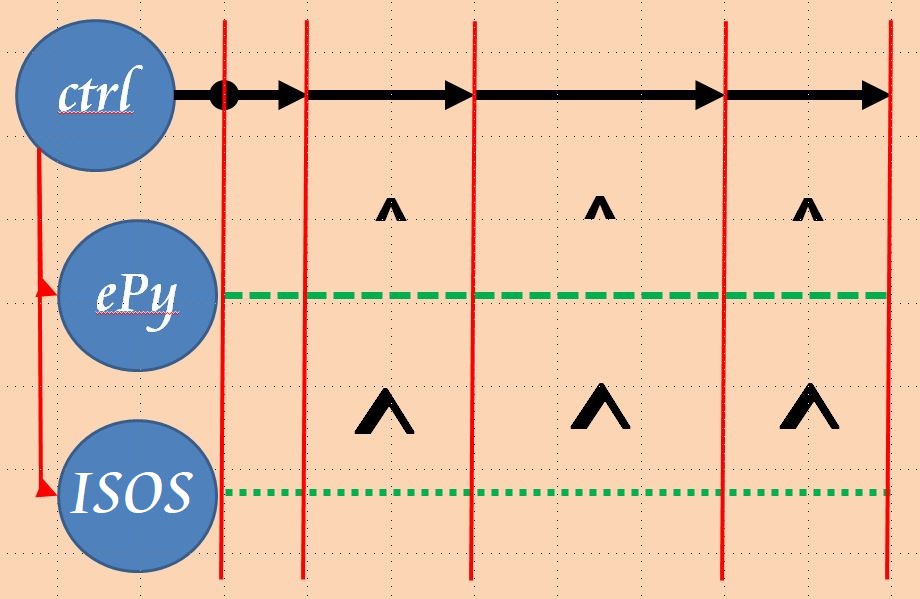
 

Os dois jobs executam em paralelo e a probabilidade de execução dos blocos sequencialmente é reduzida. Durante o desenvolvimento desta demo, eu detectei que o comando de JOB teve problemas com
ClassMethods escritos em Embedded Python (ePy).

AVISO:
Devido à Licença de Comunidade ser limitada em quantitativos de processador,
o início dos jobs em background pode falhar, especialmente se você possuir outras conexões
concorrentes.

Durante minha bateria de testes, eu descobri que o ePy obteve desempenho
~53% menor do que o código ISOS puro. 
Veja os exemplos abaixo.

O método de controle prepara processos em background e possui 3 comandos:

  • 0 .. para a execução dos jobs em background e apresenta os resultados mais recentes.
  • 1 .. interrompe os jobs em background e apresenta os resultados mais recentes
  • 2 .. executa a carga de dados nos jobs em background..
    • A carga de dados é interrompida após 60 segundos (caso não seja parado manualmente)
    • para evitar a "quebra" do Banco de Dados. 

Examplo

USER>do ##class(dc.rcc.ePYvsISOS).do()

JobStart ISOS #3841
JobStart  ePy #3842
Job Control [0=stop,1=view,2=go]: 2
Job Control [0=stop,1=view,2=go]: 1
^ePy(1,492029)=2022-03-11 20:49:32.851286
^ISOS(1,927383)=2022-03-11 20:49:32.851289

Job Control [0=stop,1=view,2=go]:
Job Control [0=stop,1=view,2=go]: 2
Job Control [0=stop,1=view,2=go]:
^ePy(2,4149270)=2022-03-11 20:50:54.620362
^ISOS(2,7719690)=2022-03-11 20:50:54.620371

Job Control [0=stop,1=view,2=go]:2
Job Control [0=stop,1=view,2=go]:
Job Control [0=stop,1=view,2=go]: 0
^ePy(3,3148765)=2022-03-11 20:50:54.620362
^ISOS(3,6714519)=2022-03-11 20:50:54.620371


Un agradecimiento especial a @Yuri Marx  por ayudarme.

English version

Discussion (0)2
Log in or sign up to continue
Discussion (7)2
Log in or sign up to continue
Question
· Apr 4, 2022

FTPS TLS session resumption

We are attempting to update some old FTP interfaces to use FTPS and having an issue with an outbound operation to a FileZilla server.

The connection to the the server works, however it fails to transfer files with the error "TLS session of data connection not resumed."

It appears that "TLS session resumption" is no longer optional in FileZilla Server, and I cannot find any details in the IRIS documentation about it.

Does IRIS support TLS session resumption, or know how to set up FTPS to a recent install of FileZilla Server?

4 Comments
Discussion (4)1
Log in or sign up to continue
Article
· Mar 29, 2022 1m read

プログラムでCSVファイルを1行ずつ読み込む方法

これは、InterSystems FAQサイトの記事です。
 

%SQL.Util.Proceduresクラスの CSV() プロシジャを使用することにより、実現できます。
下記が使用例のコードとなります。(test.csvというファイルが c:\temp にあるという前提)

 Set rowtype="Name VARCHAR(50),UID VARCHAR(50), PHONE VARCHAR(50)"
 Set filename="c:\temp\test.csv"
 Set result=##class(%SQL.Statement).%ExecDirect(,"call %SQL_Util.CSV(,?,?)",.rowtype,filename)
 Set rset =result.%NextResult()
 
 // 全件表示したい場合は、do rset.%Display()
 While rset.%Next() {
     Write "Name:",rset.%GetData(1)," UID:",rset.%GetData(2)," PHONE:",rset.%GetData(3),!
     }

 Set rset="",result=""
 Quit


上記を実行することにより結果セットとして各行およびフィールドにアクセスできます。
実行例:

USER>do ^CSV
Name    UID     PHONE
山田,太郎 0001    080-1111-1111
bbb     0003    090-2222-2222
ccc     0009    "050-3333-3333"
ddd     0010    0120-17-1972
4 Rows(s) Affected


 %SQL.Util.Proceduresクラスのクラスリファレンスも併せてご確認ください。
クラスリファレンス:%SQL.Util.Procedures.CSV()

3 Comments
Discussion (3)1
Log in or sign up to continue
Article
· Mar 27, 2022 2m read

.Net Gateway(オブジェクトゲートウェイ)で外部DLLを使用する方法

これはInterSystems FAQ サイトの記事です。

  • まず予め Visual Studioを使用して、呼び出したい内容のクラスライブラリを作成します。
  • そのプロジェクトをコンパイルし、DLLを作成します。
  • 管理ポータルでオブジェクトゲートウェイを作成します。   システム管理 > 構成 > 接続性 > オブジェクトゲートウェイ ゲートウェイ名 : testGateway サーバ名 / IPアドレス : 127.0.0.1 ポート : 55000 (後はデフォルト)  
  • testGateway を開始します。


※管理ポータルから、もしくはコマンドから開始できます。 

do ##class(%Net.Remote.Service).StartGateway(gateway.Name)
  •   以下のいずれかの方法でDLLを呼び出すプロキシクラスを作成します。

       a. コマンドで作成する場合 

     set dllPath="C:\temp\TestDll.dll
     do ##class(%Net.Remote.Gateway).%ExpressImport(dllPath, 55000, "127.0.0.1")

       b. スタジオで作成する場合


 [ツール] - [アドイン] - [.Net ゲートウェイウィザード] ⑥ 以下のような手順でコードを実行します。

例: 

  Set gateway=##class(%Net.Remote.Gateway).%New()
   set host="localhost"
   set port=55000
   set namespace="USER"
   set timeout=2
   Set classPath=##class(%ListOfDataTypes).%New()
   Set samplePath="C:\temp\TestDll.dll"
   Do classPath.Insert(samplePath)
  Set status=gateway.%Connect(host,port,namespace,timeout,classPath)
   write !,"status: ",status
   set cl=##class(TestDll.MyDllClass).%New(gateway)
   do cl.test(gateway)


最後の行の do cl.test(..) は、VisualStudioで作成したクラスライブラリの関数になります。


呼び出し引数は、作成したプロキシクラスに従ってください。

Discussion (0)1
Log in or sign up to continue