How to Download and Install InterSystems IRIS
Updated 14/04/26
Before you can start building with InterSystems IRIS, you need a working local or server installation. This guide walks through downloading the distribution and installing IRIS on Windows in a straightforward way, focusing on the steps and decisions that matter in a development setup.
I’ll cover where to get the appropriate version, what prerequisites to check before installing, and how to run through the installer on your platform. The goal is to get you to a clean, usable environment with minimal friction, so you can move on to writing code, exploring the data platform, and integrating with your existing tools.
To download a Community version, please read this article: How to get InterSystems IRIS Community Edition. It explains the different ways to obtain InterSystems IRIS Community Edition, highlighting options for local, containerized, and cloud-based setups. It shows how to use Docker to quickly pull and run a ready-to-use IRIS instance. You can also learn how to deploy IRIS in the cloud via marketplaces like AWS to avoid local installation. What's important here, this guide walks through downloading an install kit from the InterSystems Evaluation Service and selecting the right version and platform.
Get InterSystems IRIS Community Edition as an Install Kit
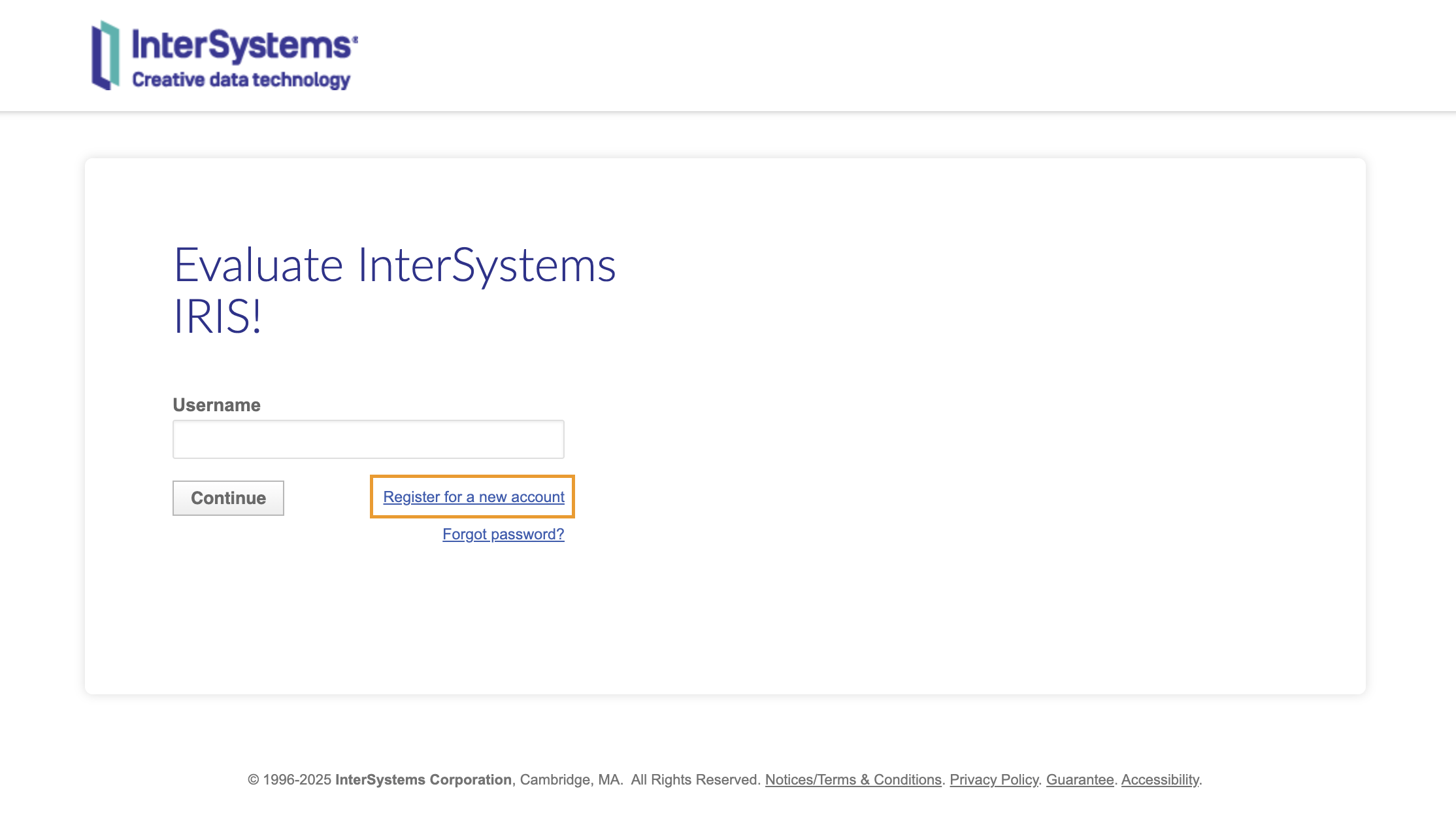
If you prefer to work with InterSystems IRIS installed directly to your machine and you don't want to deal with containers, you can download an install kit for your system from the InterSystems Evaluation Service. In order to download an install kit, you'll need an InterSystems SSO login; the good news is, if you have an account here on the Developer Community, you already have one! Otherwise, you can click "Register for a new account" and complete the steps that follow:
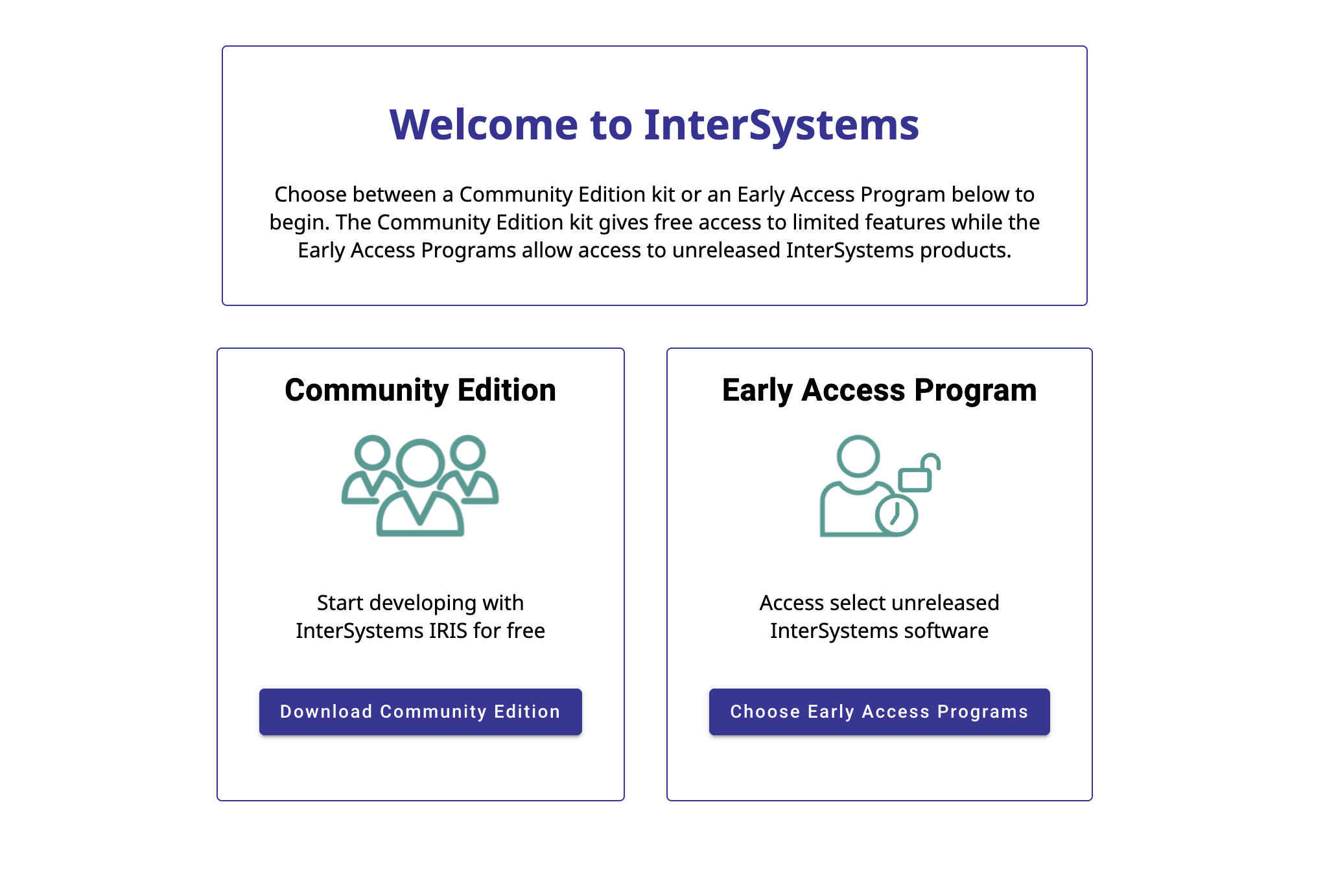
Once you've logged in, you should see the following page; click "Download Community Edition" to begin downloading the install kit:
You'll be prompted to fill out some information on exactly which version of InterSystems IRIS you need, and which platform you will be installing it on:
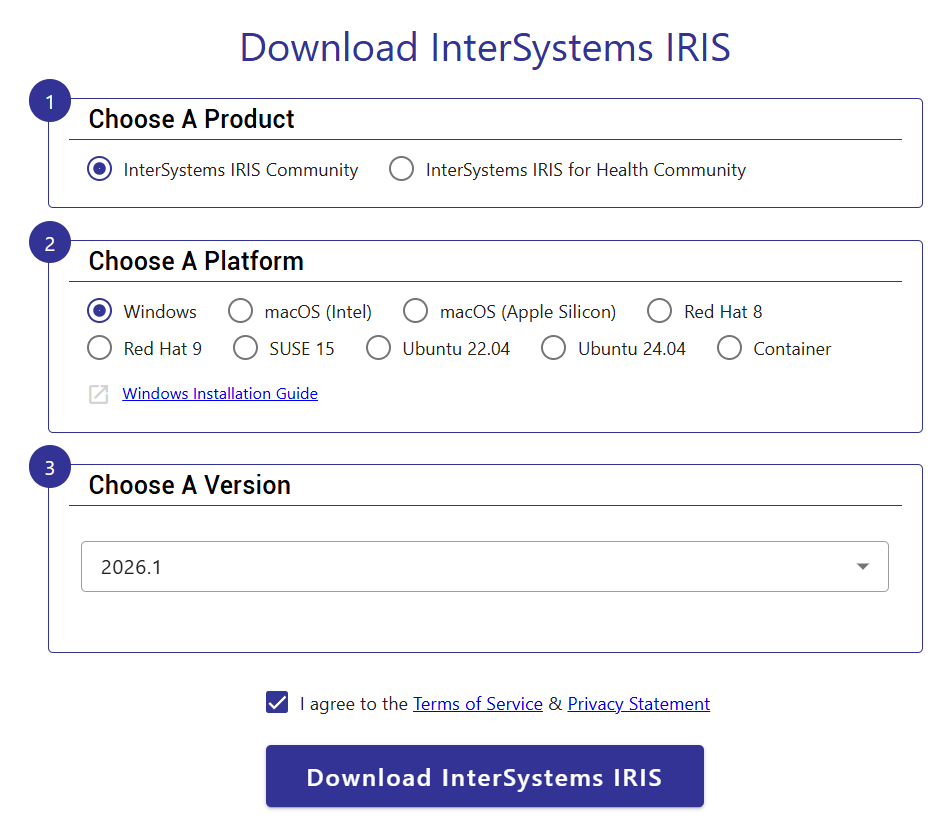
For most use cases, you'll want to select "InterSystems IRIS Community" and the most recent version available for your platform. After agreeing to the TOS, you're ready to download the install kit!
After you have downloaded the executable, it's time to install IRIS on your computer.
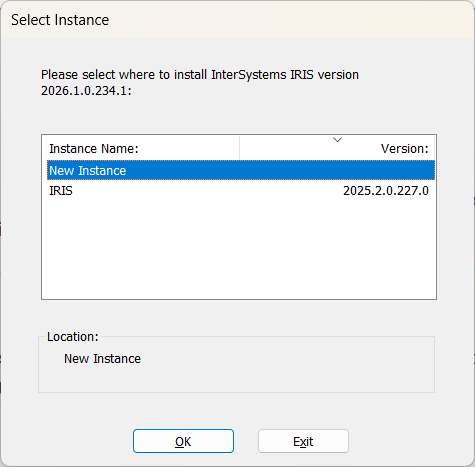
Step 1. Choose if you wish to install a new instance:
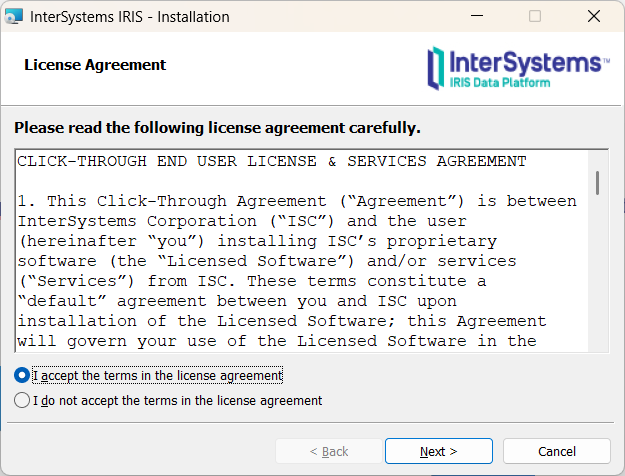
Step 2. Accept the license agreement:
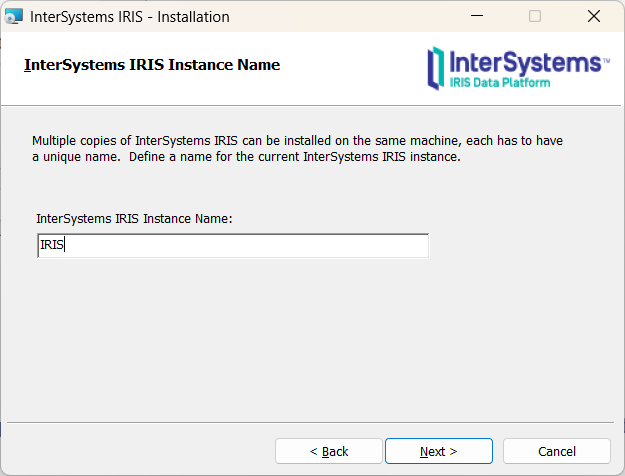
Step 3. Choose the instance name (you can leave it as it is):
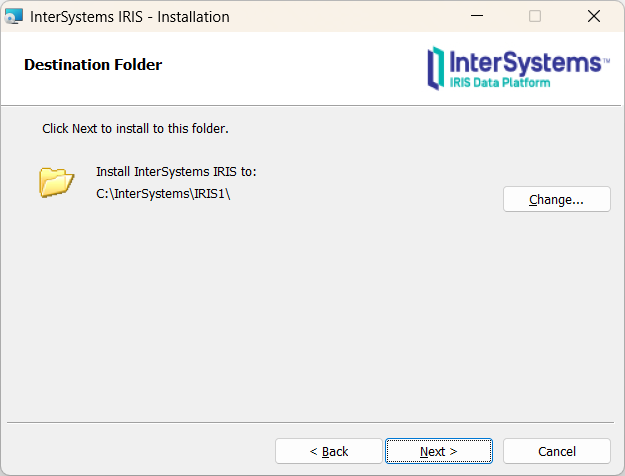
Step 4. Choose a folder to install (I would recommend leaving the one proposed):
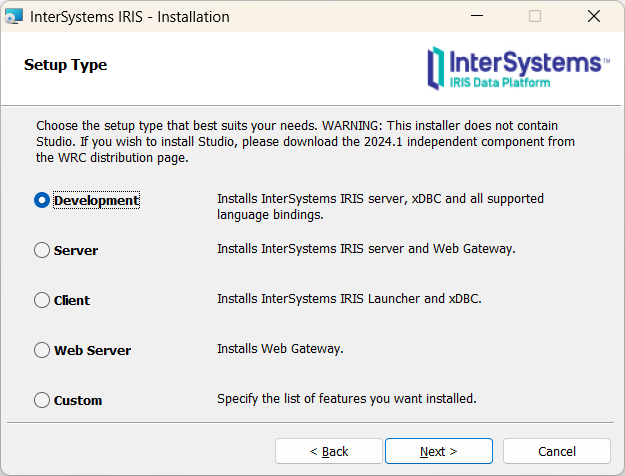
Step 5. Now you need to choose the type of the installation you want. If you plan to start developing, go with the "Development" as this will give you the most features possible:
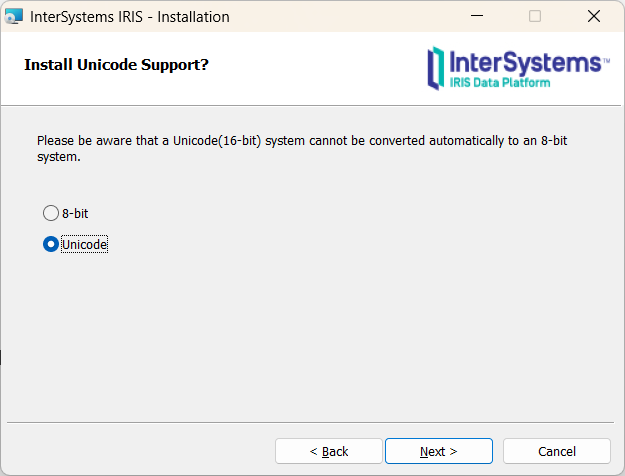
Step 6. Choose Unicode, unless you plan working with very old legacy systems:
Step 7. Choose the security mode. If you just want to play with IRIS on your computer, I would strongly suggest using minimal. It will save you a lot of trouble along the way:
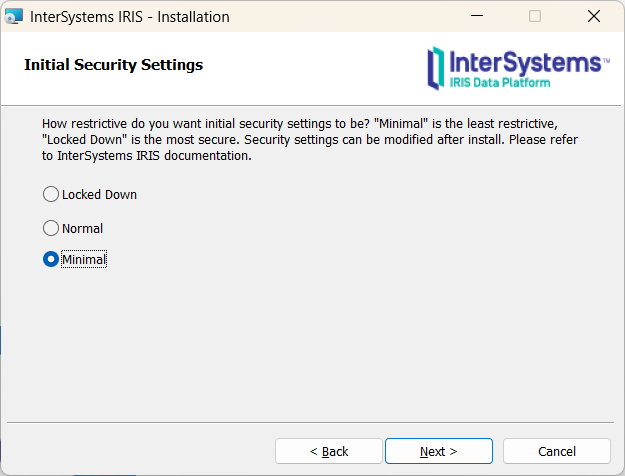
Step 7.1. If you don't choose minimal, you will need to provide usernames and passwords and set up protection.
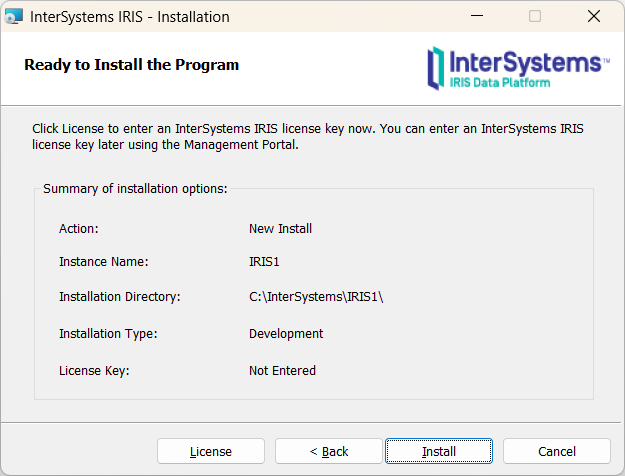
Step 8. Confirm your choices and click Install:
This is it! You now have a working DBMS IRIS, ready for your enjoyment without too much fuss. Of course, this guide will work if you have the necessary permissions and access on your Windows.
Comments
Hi @Azezur Rahman,
This is a very beautiful article.
Will you be able to make one like this as a video representation,
and also to take us through the interfaces so that we will have a better idea please?
Hoping to hear soon from you.
#Regards.
Yes i agree with @Fathima Zainab idea.
Could you please make a video presentation, that will be more informative.
Just a suggestion.
Cheers
Hi @Azezur Rahman,
This is a great and helpful article.
I was about to post and ask out from the community on how to use IRIS with community license.
Your article is very informative and educational.
Thank you so much for this.
Hope that you would bring up more good content as this.
Cheers.
These screenshots are useful! tx!
Just updating the download link, nowadays this is:
https://evaluation.intersystems.com/
(see also this post)
And the download page for the Community Edition could look like this -
.png)
thank you @Tani Frankel! We have made sure that download.InterSystems.com redirects to evaluation.InterSystems.com so hopefully those trying to follow this article can still find it even though the workflow will look differently.
@Azezur Rahman - would you be willing to update your Article since the Download app has been replaced by the Evaluation application?
Thanks @Ben Spead, note the link @Azezur Rahman provided above -
https://download.intersystems.com/download/login.csp
Does not work (and is not redirected).
Though as you mentioned the more basic - https://download.intersystems.com/ would redirect to the newer Evaluation page.
It would be great if, as you suggested, the original article could be updated.
I've updated the link in the article on behalf of being a moderator
Thank you! @Azezur Rahman - it would be great if at some point you are willing to update the screen shots :)
Hey Community,
The article has been updated to match the current installation process. Thanks!