Ensemble to RabbitMQ Java Client Quick Start Guide
A quick start guide to connect Ensemble to RabbitMQ using the RabbitMQ Java Client, a Java proxy class and the Ensemble Java Gateway.
Word and PDF documentation, source code and utilities available at https://github.com/toncat/ensemble2rabbitmq.
#Software Versions Server
- Windows Server 2012 R2 x64
- Erlang OTP 19.1
- RabbitMQ Server 3.6.5
- RabbitMQ Java Client 3.6.5
Client
- Windows Server 2012 R2 x64
- Java JDK SE 8u111
- RabbitMQ Java Client 3.6.5
- Ensemble 2016.2.0.736.0
#RabbitMQ
##Install Server http://www.rabbitmq.com/install-windows.html
Download and run the Erlang Windows Binary File
Download and install the RabbitMQ Server
Open port 5672 on server firewall
5672 is the default non-SSL port the RabbitMQ server listens for AMQP connections.
If not already configured during the RabbitMQ Server installation then open the Windows Firewall with Advanced Security management console:
Control Panel > Administrative Tools > Windows Firewall with Advanced SecurityAdd a new Port Inbound Rule:
- Protocol = TCP
- Port = 5672
And any other ports required for this installation.
##Install Client Install client on both the server hosting the RabbitMQ Server and a machine acting as a remote client.
Download and install the Java JDK
Set and check JAVA_HOME
System > Advanced system settings > Environment Variables…
JAVA_HOME = C:\Program Files\Java\jdk1.8.0_111
C:\>echo %JAVA_HOME%
C:\Program Files\Java\jdk1.8.0_111
Add the JDK bin folder to the system PATH
System > Advanced system settings > Environment Variables…
Path = %SystemRoot%;...;C:\Program Files\Java\jdk1.8.0_111\bin
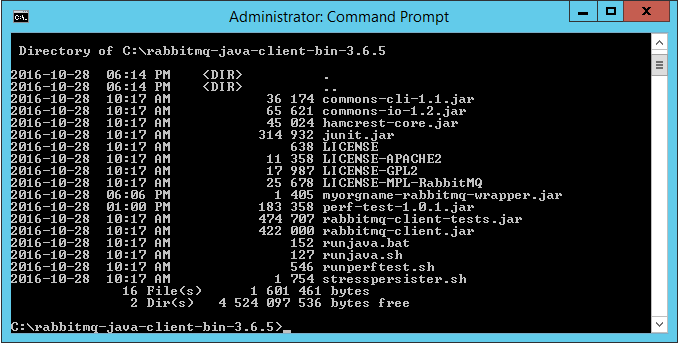
Download, unzip and copy the RabbitMQ Java Client files to a folder
C:\rabbitmq-java-client-bin-3.6.5\commons-cli-1.1.jar
C:\rabbitmq-java-client-bin-3.6.5\commons-io-1.2.jar
C:\rabbitmq-java-client-bin-3.6.5\junit.jar
…
C:\rabbitmq-java-client-bin-3.6.5\stresspersister.sh
##RPC local quick test Local to RabbitMQ Server to facilitate confidence testing.
Defaults
- host name = ”amqp://localhost”
- user name = ”guest”
- Password = ”guest”
- port number = 5672
- Vhost = “/”
Download RabbitMQ Performance Testing Tool jar file http://central.maven.org/maven2/com/rabbitmq/perf-test/1.0.1/perf-test-1.0.1.jar
Copy the jar file to the RabbitMQ Java Client folder
C:\rabbitmq-java-client-bin-3.6.5\perf-test-1.0.1.jar
More details available at:
https://www.rabbitmq.com/java-tools.html
https://github.com/rabbitmq/rabbitmq-perf-test
Run HelloServer example
Open a command prompt, navigate to the RabbitMQ Java client folder and execute
RabbitMQ Java client path>runjava com.rabbitmq.examples.HelloServer
Example
Windows
C:\rabbitmq-java-client-bin-3.6.5>runjava com.rabbitmq.examples.HelloServer

Unix
sh runjava.sh com.rabbitmq.examples.HelloServer
Run HelloClient example
Open a separate command prompt, navigate to the Java client folder and execute
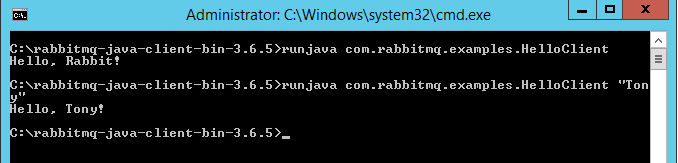
RabbitMQ Java client path>runjava com.rabbitmq.examples.HelloClient
Example
Windows
C:\rabbitmq-java-client-bin-3.6.5>runjava com.rabbitmq.examples.HelloClient
C:\rabbitmq-java-client-bin-3.6.5>runjava com.rabbitmq.examples.HelloClient "Tony"

Unix
$ sh runjava.sh com.rabbitmq.examples.HelloClient
Hello, Rabbit!
$ sh runjava.sh com.rabbitmq.examples.HelloClient "Tony"
Hello, Tony!
Monitor queues
Open a separate command prompt, navigate to the sbin folder in the RabbitMQ server folder and execute
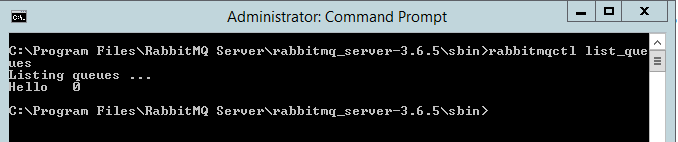
RabbitMQ Server path>\sbin\rabbitmqctl list_queues
Example
Windows
C:\Program Files\RabbitMQ Server\rabbitmq_server-3.6.5\sbin>rabbitmqctl list_queues
Unix
$ ./rabbitmqctl list_queues
Listing queues ...
Hello	0
##RPC remote quick test Remote to RabbitMQ server to facilitate confidence testing across network.
Defaults
- user name = “guest”
- Password = “guest”
- port number = 5672
- Vhost = “/”
"guest" user can only connect via localhost:
https://www.rabbitmq.com/access-control.html
Run HelloServer example On the remote machine; open a command prompt, navigate to the RabbitMQ Java client folder and execute
RabbitMQ Java client path>runjava com.rabbitmq.examples.HelloServer “host”
Example
Windows
C:\rabbitmq-java-client-bin-3.6.5>runjava com.rabbitmq.examples.HelloServer "amqp://WIN-UK0KESAK7LB"
Unix
$ sh runjava.sh com.rabbitmq.examples.HelloServer
Run HelloClient example On the remote machine; open a separate command prompt, navigate to the Java client folder and execute
Java client path>runjava com.rabbitmq.examples.HelloClient “message” “host”
Example
Windows
C:\rabbitmq-java-client-bin-3.6.5>runjava com.rabbitmq.examples.HelloClient "Tony" "amqp://WIN-UK0KESAK7LB"
Unix
$ sh runjava.sh com.rabbitmq.examples.HelloClient "Tony" "amqp://WIN-UK0KESAK7LB"
Hello, Tony!
Monitor queues
On the RabbitMQ Server server; open a separate command prompt, navigate to the sbin folder in the RabbitMQ server folder and execute
RabbitMQ Server path>\sbin\rabbitmqctl list_queues
Example
Windows
C:\Program Files\RabbitMQ Server\rabbitmq_server-3.6.5\sbin>rabbitmqctl list_queues
Unix
$ ./rabbitmqctl list_queues
Listing queues ...
Hello	0
#Ensemble Object Gateway
##Create Java Object Gateway definition
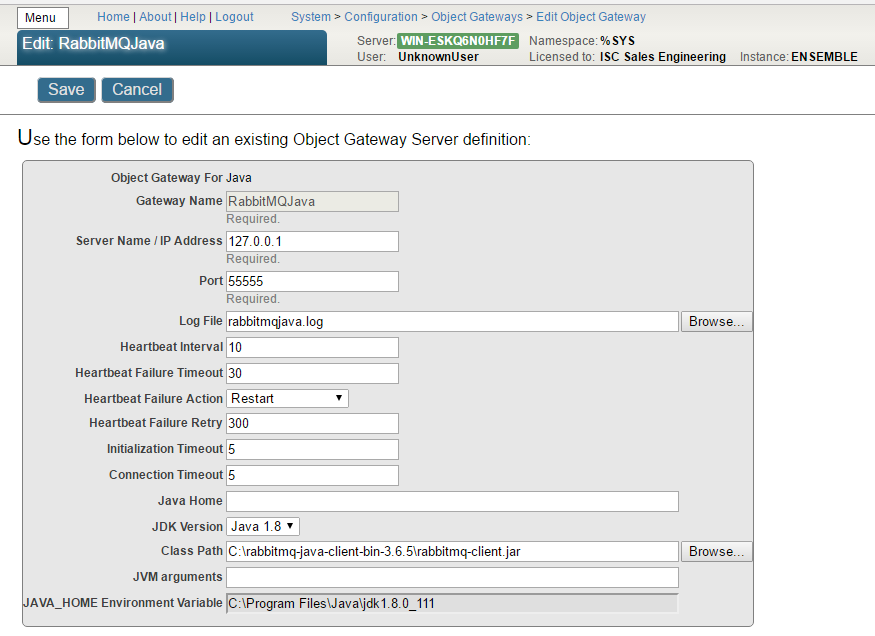
Navigate to the Object Gateways page in the Management Portal
System > Configuration > Connectivity > Object Gateways
and select Create New Gateway.
Start instance of gateway
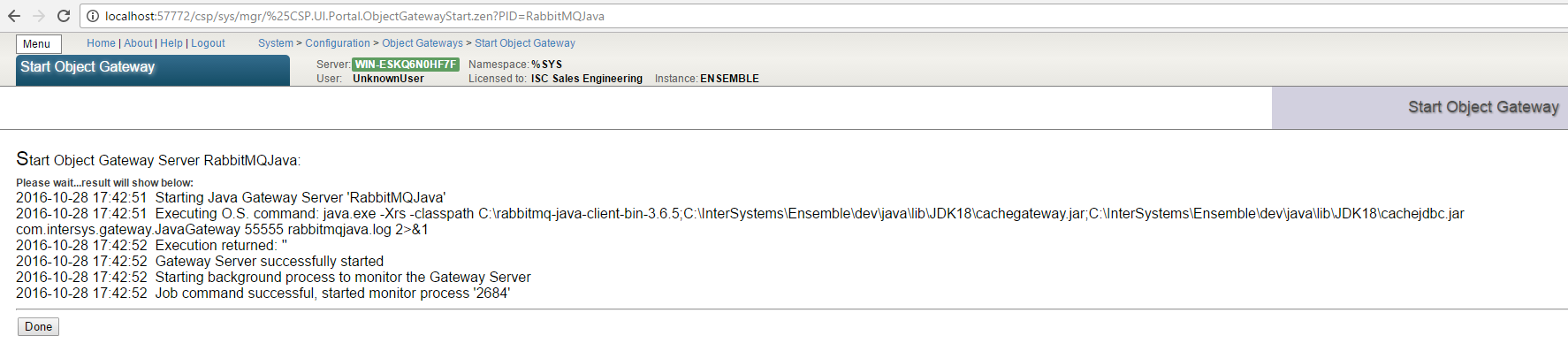
You can start the Java Gateway server in one of the following ways
- Manually, by selecting the Start link of a previously configured gateway (see below)
- Manually, by calling the business service StartGateway method
- Manually, by entering a command at the Terminal command prompt
- Automatically, by adding a Java Gateway business service to the production
- The Java Gateway server starts when the production starts
#Proxy class
The object gateway provides a proxy class mechanism to execute, in this example, Java code, from within Ensemble.
##RabbitMQ Java wrapper class
It is usually not practical to import a complete library, so the recommendation is to create a wrapper class that provides a simplified, subset of the required functionality.
Create a Java source file
\com\myorgname\rabbitmq\Wrapper.java
package com.myorgname.rabbitmq;

import com.rabbitmq.client.ConnectionFactory;
import com.rabbitmq.client.Connection;
import com.rabbitmq.client.Channel;
import com.rabbitmq.client.QueueingConsumer;

public class Wrapper {

  public void sendMsg(String hostName, String queueName, byte[] msg) throws Exception {
	   ConnectionFactory factory = new ConnectionFactory();
	   factory.setHost(hostName);
	   Connection connection = factory.newConnection();
	   Channel channel = connection.createChannel();
	   channel.queueDeclare(queueName, false, false, false, null);

		  channel.basicPublish("", queueName, null, msg);

		  channel.close();
		  connection.close();

  }

	public int readMsg(String hostName, String queueName, byte[] msg) throws Exception {
		ConnectionFactory factory = new ConnectionFactory();
		factory.setHost(hostName);
		Connection connection = factory.newConnection();
		Channel channel = connection.createChannel();
		channel.queueDeclare(queueName, false, false, false, null);
		QueueingConsumer consumer = new QueueingConsumer(channel);
		channel.basicConsume(queueName, true, consumer);

		QueueingConsumer.Delivery delivery = consumer.nextDelivery();
		int len = delivery.getBody().length;
		System.arraycopy(delivery.getBody(),0,msg,0,len);

		channel.close();
		connection.close();

		return len;

	}

}
Compile the wrapper class
Compile the class using for example
javac -verbose -cp C:\rabbitmq-java-client-bin-3.6.5\rabbitmq-client.jar com\myorgname\rabbitmq\Wrapper.java
Example output
C:\rabbitmq-java-proxy-3.6.5>javac -verbose -cp C:\rabbitmq-java-client-bin-3.6.
5\rabbitmq-client.jar com\myorgname\rabbitmq\Wrapper.java
[parsing started RegularFileObject[com\myorgname\rabbitmq\Wrapper.java]]
[parsing completed 30ms]
[search path for source files: C:\rabbitmq-java-client-bin-3.6.5\rabbitmq-client
.jar]
…
[loading ZipFileIndexFileObject[C:\rabbitmq-java-client-bin-3.6.5\rabbitmq-clien
t.jar(com/rabbitmq/client/AMQP$BasicProperties.class)]]
[wrote RegularFileObject[com\myorgname\rabbitmq\Wrapper.class]]
[total 631ms]
Package the class/es in a jar file
Create a jar using for example
jar cvf myorgname-rabbitmq-wrapper.jar com\myorgname\rabbitmq\Wrapper.class
Example output
C:\rabbitmq-java-proxy-3.6.5>jar cvf myorgname-rabbitmq-wrapper.jar com\myorgnam
e\rabbitmq\Wrapper.class
added manifest
adding: com/myorgname/rabbitmq/Wrapper.class(in = 1938) (out= 899)(deflated 53%)
Copy the jar file to the RabbitMQ Java Client install folder
##Ensemble proxy class ###Import the Java wrapper into Ensemble
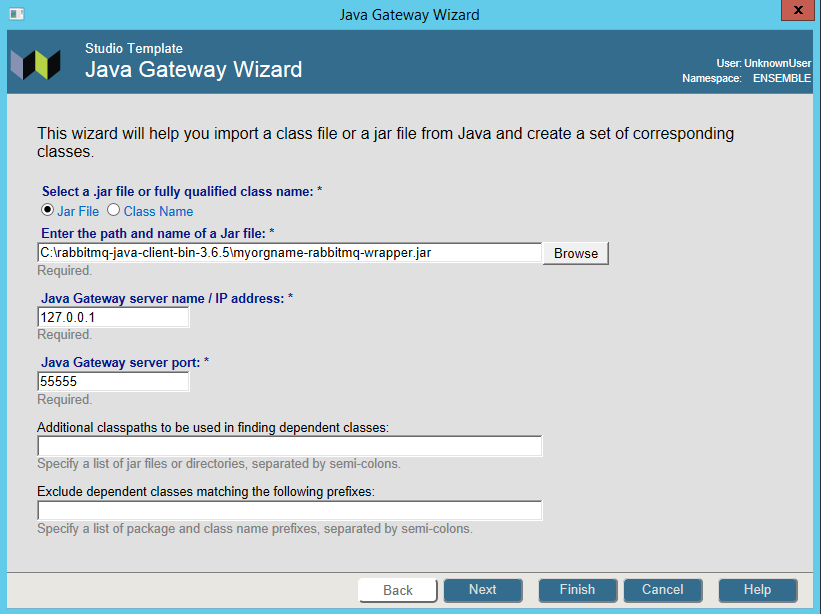
Open the Java Gateway Wizard in Studio
Tools > Add-Ins > Java Gateway Wizard
- Select Jar File and enter the path and name of the wrapper jar file
- Specify the Java Gateway server name or IP address and its port number
- Select Next
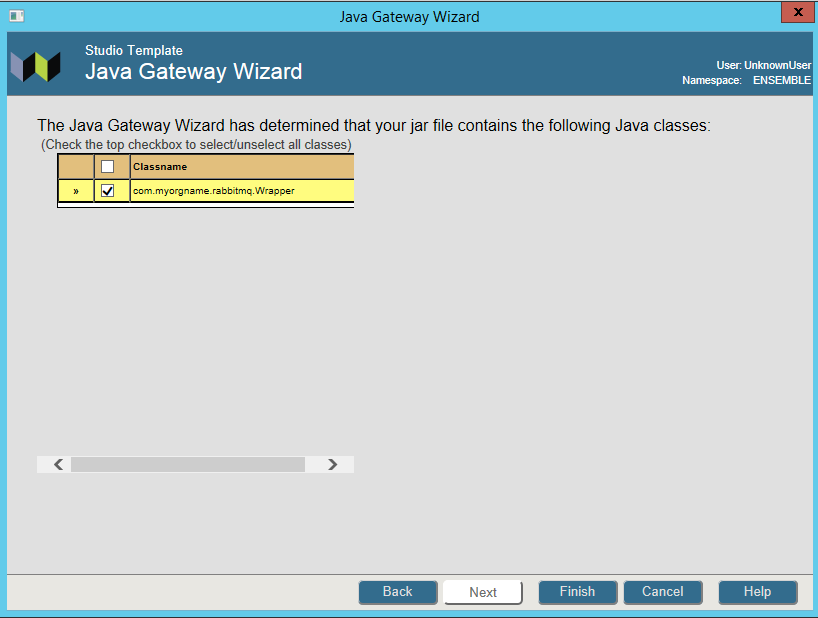
- Select the Wrapper class
- Select Finish
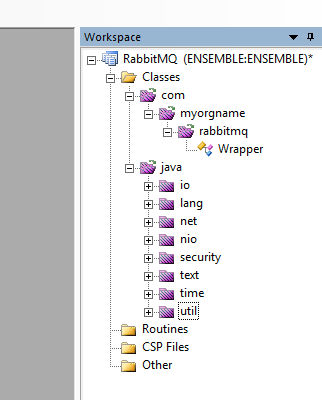
Example result of an import
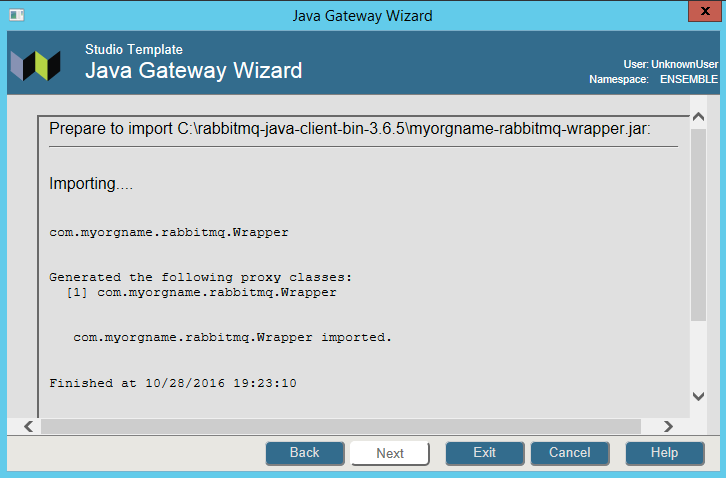
Note the proxy classes imported
 ###Use the proxy classes in your application
####Create a utility class to test connectivity to the RabbitMQ server
###Use the proxy classes in your application
####Create a utility class to test connectivity to the RabbitMQ server
Class RabbitMQ.Java.HelloWorld Extends %RegisteredObject
{
Parameter CLASSPATH = "C:\rabbitmq-java-client-bin-3.6.5\myorgname-rabbitmq-wrapper.jar";
Parameter HOST = "localhost";
Parameter QUEUE = "hello";
/// s sc=##class(RabbitMQ.Java.HelloWorld).SendMsg()
ClassMethod SendMsg(pMsg = "Hello from Ensemble!") As %Status
{
#dim tGateway as %Net.Remote.Gateway
#dim tException as %Exception.AbstractException
Set tSC=$$$OK
Try	{
	Set tGateway=..Connect()
	Set tRabbitMQWrapper=##class(com.myorgname.rabbitmq.Wrapper).%New(tGateway)
	Set tByteStream=##class(%Library.GlobalBinaryStream).%New()
	Set tSC = tByteStream.Write(pMsg)
	Do tRabbitMQWrapper.sendMsg(..#HOST,..#QUEUE, tByteStream)
	Write !,"Sent message via "_tByteStream.Read()

	Set tSC=tGateway.%Disconnect()

} Catch tException {
	Set tSC = tException.AsStatus()
}

Quit tSC

}
/// s sc=##class(RabbitMQ.Java.HelloWorld).ReadMsg()
ClassMethod ReadMsg(pMsgLen = 32000) As %Status
{
#dim tGateway as %Net.Remote.Gateway
#dim tException as %Exception.AbstractException
Set tSC=$$$OK
Try	{
	Set tGateway=..Connect()
	Set tRabbitMQWrapper=##class(com.myorgname.rabbitmq.Wrapper).%New(tGateway)

	Set tReadStream=##class(%GlobalBinaryStream).%New()
	// we need to 'reserve' a number of bytes since we are passing the stream
	// by reference (Java's equivalent is byte[] ba = new byte[max];)
	For i=1:1:pMsgLen Do tReadStream.Write("0")

	Set tBytesRead=tRabbitMQWrapper.readMsg(..#HOST,..#QUEUE, .tReadStream)
	Write tReadStream.Read(tBytesRead),!
	Write "Bytes Read: ",tBytesRead,!

	Set tSC=tGateway.%Disconnect()

} Catch tException {
	Set tSC = tException.AsStatus()
}

Quit tSC

}
ClassMethod Connect(pPort As %Integer = 55555, pHost As %String = "127.0.0.1") As %Net.Remote.Gateway
{
// connect to current namespace, use 2 second timeout
Set tSC=$$$OK,tNamespace=$zu(5),tTimeout=2
Set tClassPath=##class(%ListOfDataTypes).%New()
Do tClassPath.Insert(..#CLASSPATH)
// get a connection handle and connect
Set tGateway=##class(%Net.Remote.Gateway).%New()
Set tSC=tGateway.%Connect(pHost,pPort,tNamespace,tTimeout,tClassPath)
If tSC'=$$$OK {
	Write $system.OBJ.DisplayError(tSC)
	Set tGateway=""
}
Quit tGateway

}
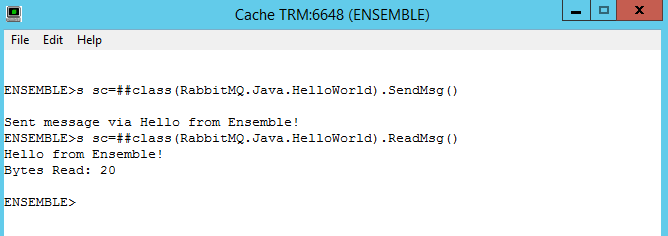
####Test the utility class
#The End
Comments
I successfully got everything in this guide to work. Thank you for posting.
I am now using the information I gained from this guide along side with this guide:
https://www.rabbitmq.com/tutorials/tutorial-one-spring-amqp.html
I am running into an issue though. In the RabbitMQ guide I just posted, they have a "Receive message" functionality. I use that alongside with the SendMsg from Ensemble method in this guide. The issue I have is the message I receive looks like "[B@2c421093(byte[21])" instead of "Hello from Ensemble!".
Unfortunately I have no experience with Object Script or Mumps (so inexperienced I'm not sure which language the HelloWorld.cls is) so I am having trouble figuring out how to successfully send the message "Hello from Ensemble!" instead of "[B@2c421093(byte[21])". If anyone could help me decipher what exactly is happening in the code and how to alter the message to a string instead of bytes, it would be much appreciated.
Thank you!
You can check out this RabbitMQ adapter. I had the same issue with stream interpretation and it's fixed there.
I meant this guide: https://www.rabbitmq.com/tutorials/tutorial-one-spring-amqp.html
Not the Python one I linked to in my previous comment.
I think this guide needs to be updated, because of new versions of client and RabbitMQ Performance Testing Tool are avaliable. I used rabbitmq-perf-test 2.8.1 and amqp-client-5.7.3
I had problems with Runing HelloServer example, error was Could not find or load main class com.rabbitmq.examples.HelloServer, may be because there is no such classes in new versions of testing tool. And it seems like author forgot to specify that we need to copy runjava to bin client directory, not only *.jar file..
So I can't start hello-server example, please, help me.
What I need do to use it on Cache 2018 except Ensemble?
This needs confirmation but it looks like the com.rabbitmq.examples package is deprecated.
Have you tried https://www.rabbitmq.com/tutorials/tutorial-one-java.html?
Am I understanding your last question? You are not interested in trying RabbitMQ adapter because you do not need to connect to Rabbitmq using Ensemble; you only need to connect to Rabbitmq using Caché?
Yes, I tried thats tutorial, and yes, I use Cache, not Ensemble
RabbitMQ adapter can work with Cache (in non-interoperability environments).