Introduction to Interoperability on Python (IoP) - Part3
Hi Community,
In our two preceding articles, we explored the fundamentals of the Interoperability Embedded Python (IoP) framework, including message handling, production setup, and Python-based business components.
In this third piece, we will examine advanced methodologies and practical patterns within the IoP framework that are pivotal for real-world interoperability implementations.
We will explore the following topics:
✅ DTL (Data Transformation Language) in IoP
✅ JSON Schema Support
✅ Effective Debugging Techniques
Collectively, these features help us create maintainable, validated, and easily troubleshootable production-grade interoperability solutions.
✅DTL (Data Transformation Language) in IoP
DTL serves as the Data Transformation Language built into the IRIS Interoperability Framework. It provides a drag-and-drop graphical editor in the Management Portal, allowing us to define mappings from a source message to a target message field-by-field and loop-by-loop. Historically, this was restricted to ObjectScript-based messages. However, starting with IoP version 3.2.0, our Python message classes are treated as first-class citizens in DTL.
This is a significant milestone. It means a Python developer can define message structures using Python dataclasses, enroll them once, and then delegate the transformation logic to a business analyst or integration specialist. That individual can work entirely within the visual DTL editor without requiring any ObjectScript knowledge.
In this section, we will implement a practical use case: a patient appointment notification system in which an incoming appointment request message containing raw patient data will be transformed into an outbound notification message with a normalized subset of that data. The process will follow the steps below:
-
Step 1: Create the Python message classes
-
Step 2: Register the message classes in settings.py
-
Step 3: Run IOP --migrate to enroll all components
-
Step 4: Build and test the DTL transformation in the Management Portal
Let’s begin with Step 1:
Step 1: Create the Python message classes
Create the following msg.py file in your development environment:
# msg.py
from iop import Message
from dataclasses import dataclass, field
from typing import List

@dataclass
class AppointmentRequest(Message):
    patient_id: str = None
    patient_name: str = None
    date_of_birth: str = None
    appointment_date: str = None
    appointment_time: str = None
    department: str = None
    reason: str = None
    contact_numbers: List[str] = field(default_factory=list)

@dataclass
class AppointmentNotification(Message):
    patient_name: str = None
    appointment_date: str = None
    appointment_time: str = None
    department: str = None
    primary_contact: str = None
    confirmation_code: str = None
A few key points to note: both classes inherit from iop.Message and leverage Python’s standard dataclasses module. The AppointmentRequest includes a contact_numbers list, representing a repeating field that DTL can handle natively once the schema is registered by IoP. In contrast, AppointmentNotification is intentionally simplified, with the transformation step responsible for selecting only the data required for the notification.
Step 2: Register the Message Classes in settings.py
IoP must recognize these message classes before IRIS can expose them in the DTL editor. Create a settings.py file and enlist the previously defined classes within it.
# settings.py
from msg import AppointmentRequest, AppointmentNotification
SCHEMAS = [AppointmentRequest, AppointmentNotification]
The key addition here, compared to earlier articles, is the SCHEMAS list. It instructs iop --migrate to generate VDoc schema files in IRIS, making these Python classes available in the DTL editor.
Step 3: Run iop --migrate to Register Everything
Execute the following iop --migrate command to transfer the components into IRIS:
iop --migrate /path/to/your/project/settings.pyThis generates IRIS VDoc schema classes for AppointmentRequest and AppointmentNotification
Step 4: Build and Test the DTL Transformation in the Management Portal
Open the IRIS Management Portal, go to Interoperability → Build → Data Transformations, and click the New button.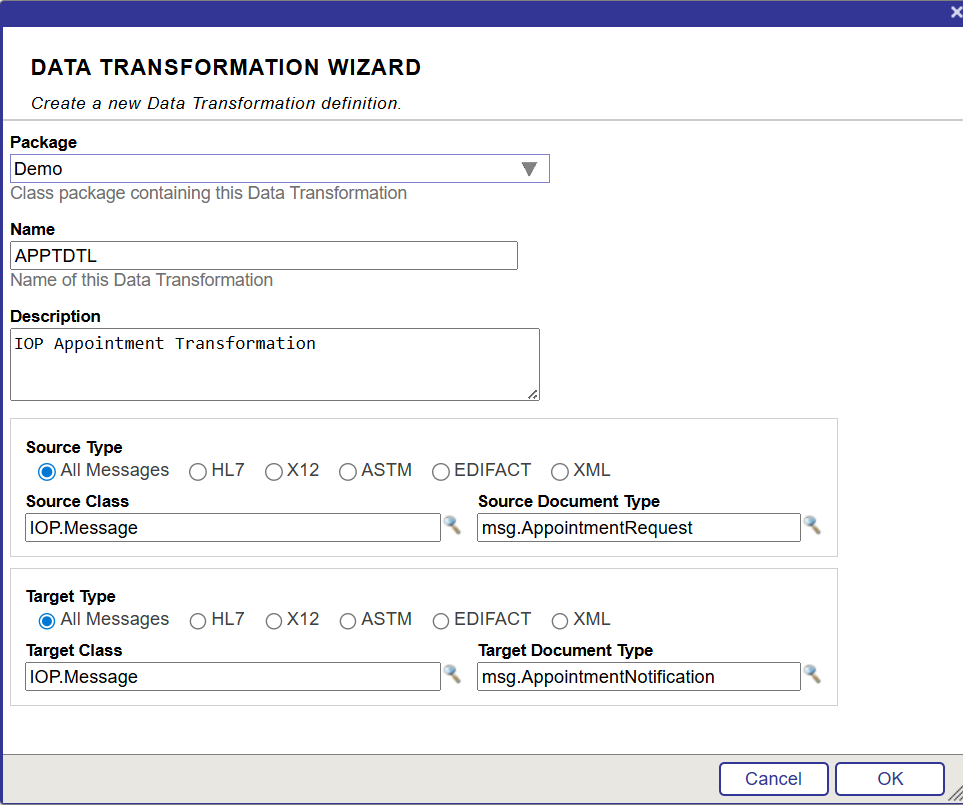
In the wizard, configure the following settings:
- Package Name:
Demo - DTL Name:
APPTDTL - Source Class:
IOP.Message - Source Doc Type:
msg.AppointmentRequest(generated by IoP) - Target Class:
IOP.Message - Target Doc Type:
msg.AppointmentNotification
Click OK and you will land in the visual DTL editor.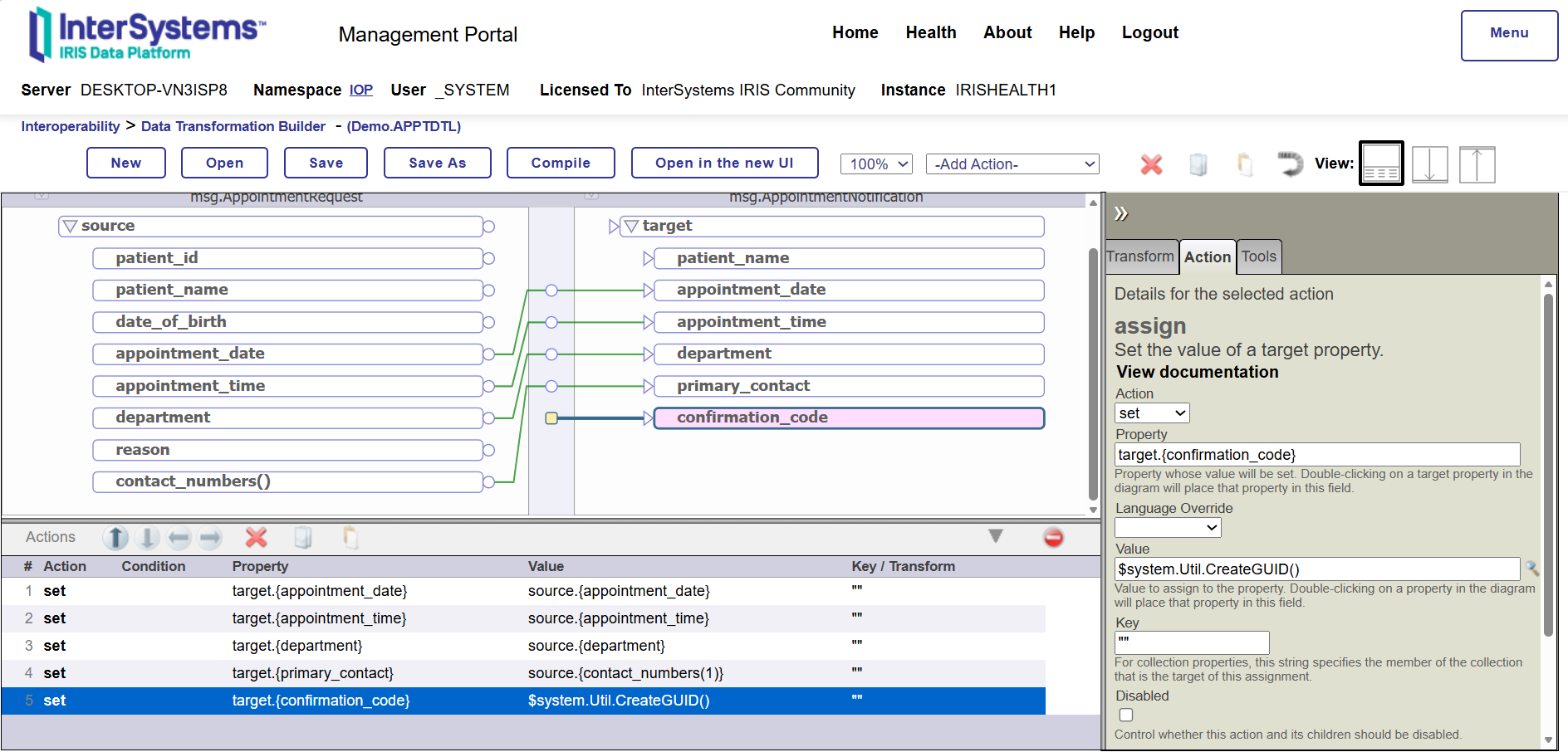
Now map the fields as follows:
- Drag source.patient_name → target.patient_name
- Drag source.appointment_date → target.appointment_date
- Drag source.appointment_time → target.appointment_time
- Drag source.department → target.department
- For target.primary_contact, employ a Set action with the value
source.{contact_numbers(1)}to select the first phone number from the list - For target.confirmation_code, use a Set action with a custom ObjectScript expression like
$system.Util.CreateGUID()to generate a unique confirmation code dynamically
Save and compile the DTL to make it ready for usage.
You can test the transformation directly by clicking Test button from the Tools tab. Paste a sample payload in XML envelope format as shown below:
<test>
 <Message>
   <json><![CDATA[
{
 "patient_id": "P123456",
 "patient_name": "Maria Gonzalez",
 "date_of_birth": "1985-04-12",
 "appointment_date": "2026-04-15",
 "appointment_time": "14:30",
 "department": "Cardiology",
 "reason": "Follow-up after ECG abnormalities",
 "contact_numbers": ["+12025550123", "+12025550124"]
}
]]></json>
 </Message>
</test> 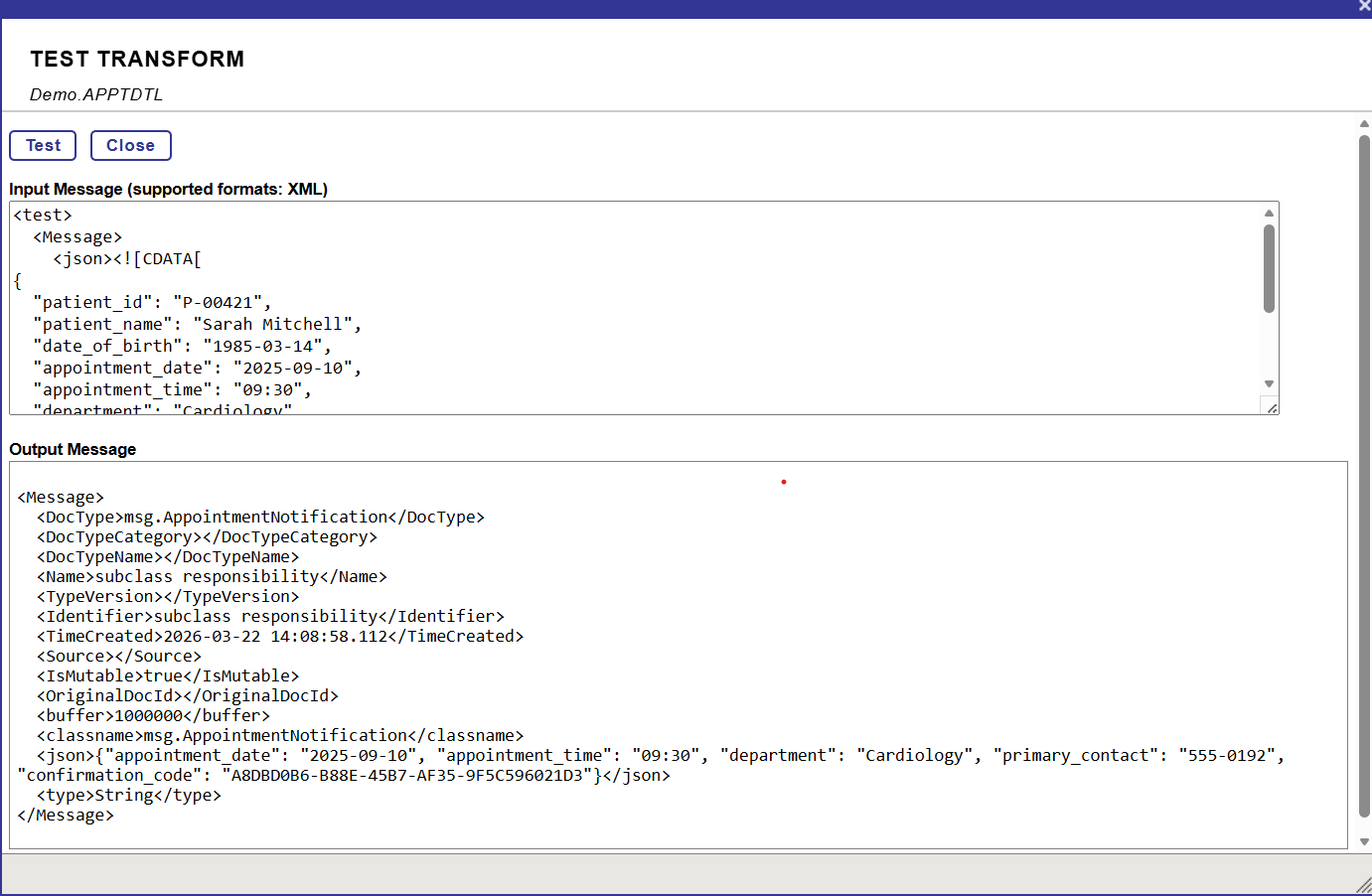
✅ JsonSchema Support
The DTL approach we covered works well when you control the message definition and can represent it as a Python dataclass. However, in integration scenarios, we often receive a JSON payload from an external system we did not design, such as a third-party API, a legacy system, or an external partner. In such cases, a JSON Schema file is usually the only available contract.
Starting with IoP 3.2.0+, we can import a raw JSON Schema file directly into IRIS and use it as a DTL document type without defining a Python class.
For this scenario, imagine we are receiving patient appointment details. They provide a JSON Schema document, and our goal is to build a DTL that extracts key fields and maps them into our internal AppointmentNotification message (defined earlier).
Similarly to message classes, we need to register our JSON schema. Save the following content as appointment_request_schema.json:
{
  "$schema": "https://json-schema.org/draft/2020-12/schema",
  "title": "AppointmentRequest",
  "description": "Schema for incoming appointment booking requests",
  "type": "object",
  "properties": {
    "patient_id": {
      "type": "string",
      "description": "Unique patient identifier (e.g., MRN or external ID)",
      "minLength": 1
    },
    "patient_name": {
      "type": "string",
      "description": "Full name of the patient",
      "minLength": 2
    },
    "date_of_birth": {
      "type": "string",
      "format": "date",
      "description": "Patient's birth date in YYYY-MM-DD format"
    },
    "appointment_date": {
      "type": "string",
      "format": "date",
      "description": "Requested appointment date in YYYY-MM-DD format"
    },
    "appointment_time": {
      "type": "string",
      "description": "Requested time in HH:MM (24-hour) format",
      "pattern": "^([01][0-9]|2[0-3]):[0-5][0-9]$"
    },
    "department": {
      "type": "string",
      "description": "Target department or specialty (e.g. Cardiology, Pediatrics)",
      "minLength": 1
    },
    "reason": {
      "type": "string",
      "description": "Reason for the appointment (chief complaint or referral reason)",
      "minLength": 5
    },
    "contact_numbers": {
      "type": "array",
      "description": "List of contact phone numbers",
      "items": {
        "type": "string",
        "pattern": "^\\+?[1-9]\\d{1,14}$"
      },
      "minItems": 1
    }
  },
  "required": [
    "patient_id",
    "patient_name",
    "date_of_birth",
    "appointment_date",
    "appointment_time",
    "department",
    "reason",
    "contact_numbers"
  ],
  "additionalProperties": false
}
Open an IRIS terminal session in your namespace and run the next command:
IOP>zw ##class(IOP.Message.JSONSchema).ImportFromFile("D:\IOP\hello_world\appointment_request_schema.json","Demo","AppointmentRequestJ")The three arguments are the following:
- The absolute path to your JSON Schema file on the IRIS server filesystem
- The package name that groups the schema in IRIS (use
Demohere) - The schema name, used as a name in the DTL editor (
AppointmentRequestJ)
Once this command is completed, IRIS will register your schema internally. There is no need to create a Python class for this structure.
Now you can create a DTL with the help of the JSON Schema. Just follow the steps outlined above to build the DTL.
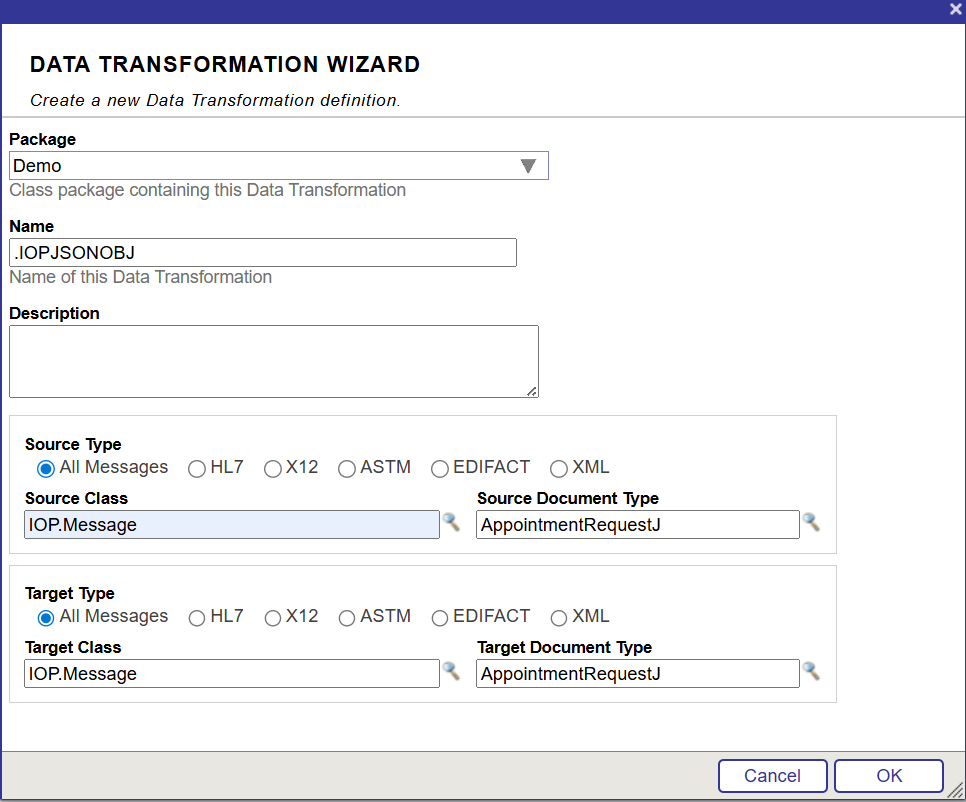
Once the DTL is finalized, it can be tested with the following payload:
<test>
 <Message>
   <json><![CDATA[
{
 "patient_id": "P123456",
 "patient_name": "Maria Gonzalez",
 "date_of_birth": "1985-04-12",
 "appointment_date": "2026-04-15",
 "appointment_time": "14:30",
 "department": "Cardiology",
 "reason": "Follow-up after ECG abnormalities",
 "contact_numbers": ["+12025550123", "+12025550124"]
}
]]></json>
 </Message>
</test>
✅ Effective Debugging Techniques
Since IoP is built on top of IRIS Embedded Python, in practice, your Python code does not run under a regular Python interpreter; it is executed inside an IRIS process. It means that the usual trick of just running a file with Python myfile.py and stepping through it with a debugger does not apply directly to active production.
There are two main approaches to tackle this: remote debugging (attaching directly to the live IRIS process) and local debugging (running the code outside IRIS using a native Python interpreter). Each one is helpful depending on what you are trying to diagnose.
Remote Debugging:
It was introduced in IoP version 3.4.1 and is currently the most direct way to debug a component running inside production.
Once you have this version or a later one, new options appear in the Management Portal for each production item:
- Enable Debugging — activates the remote debug listener for that component.
- Debugging Port — the port your IDE will connect to. Setting it to 0 lets IRIS automatically pick a random available port.
- Debugging Interpreter — a tool you leave at its default in almost all cases.
When you start the process with debugging enabled, the IRIS log will show a message indicating it is waiting for a connection on the assigned port. At that point, you have a window to connect from your IDE. However, if you wait too long, the port will close, and you will need to restart the process.
To connect from VSCode, you should add a launch configuration as shown below:
{
   "name": "Python: Remote Debug",
   "type": "python",
   "request": "attach",
   "connect": {
       "host": "<IRIS_HOST>",
       "port": <IRIS_DEBUG_PORT>
   },
   "pathMappings": [
       {
           "localRoot": "${workspaceFolder}",
           "remoteRoot": "/irisdev/app"
       }
   ]
}
The pathMappings section tells VSCode how to map file paths between your local machine and the IRIS instance. Once connected, you get full breakpoint and step-through support, just like when debugging a local Python script.
Local Debugging
If remote setup feels like too much work for a quick check, go for local debugging instead. The idea is to run your IoP code directly with a native Python interpreter outside of IRIS, so your standard debugger can do the job.
The trade-off is that you will need either a local IRIS installation or a running Docker container to back it. For Docker users, the Remote - Containers VSCode extension allows you to attach directly to the container and follow the local debugging steps from within.
Conclusion
We began with DTL integration, demonstrating how Python message classes can seamlessly participate in the IRIS visual transformation layer. This bridges the gap between developers and integration specialists, allowing each to utilize their preferred tools—Python for structure and logic, and DTL for transformation design. The ability to visually map Python-defined schemas is a major step toward simplifying collaboration and reducing development time.
Next, we examined JSON Schema support, which is especially beneficial for real-world integrations where you have no control over the incoming data format. Instead of forcing everything into Python classes, IoP allows you to directly import external schemas and use them in DTL transformations. This flexibility ensures that your interoperability layer can quickly adapt to third-party systems without unnecessary rework.
Finally, we reviewed debugging techniques, both remote and local, since understanding how IoP runs inside the IRIS process is key to troubleshooting effectively. While remote debugging gives you deep insight into live productions, local debugging offers speed and convenience during development. Together, these approaches provide a complete toolkit for diagnosing and resolving issues in complex integration flows.
Comments
Thanks @Muhammad Waseem for this neat article, showing off the DTL support for JsonSchema :)