Data migration tool - Part V: from Oracle Database 21c to IRIS
Introduction
This is the fifth part of the series of articles on migrating from the main databases on the market to InterSystems IRIS. In this part, the procedures for migrating from Oracle Database 21c will be detailed. As described in previous articles, there are currently a few options for how to do the migration, but the two most popular ones include the use of DBeaver (https://dbeaver.io/download/) or SQLGateway. The first one will be demonstrated in this article, and the second one is described in an excellent article by Robert Cemper, DB Migration using SQLgateway (https://community.intersystems.com/post/db-migration-using-sqlgateway).
Get the sample data for the migration process
In GitHub it is possible to download a docker-compose project to build and run 2 databases:
- Source Database: Oracle Database 21c Express Edition Docker instance with a sample database (SAMPLEDB).
- Target Database: InterSystems IRIS data platform Docker instance with a ready schema to receive the source database.
To get the sample and run it, follow these steps:
- Go to https://github.com/yurimarx/migration-oracle-iris to access the Git repository.
-
Clone the project:
git clone https://github.com/yurimarx/migration-oracle-iris.git - Go to the project folder migration-oracle-iris.
-
Do the build:
docker-compose build -
Execute the containers:
docker-compose up -d - Check if everything is ok with the instances in your docker desktop:

About the data to be migrated
In the first two parts we worked with a sales database. In part III we used a DB2 sample database (it is the most complete sales database currently on the market). In part IV we used the AdventureWorks Schema. Now we will work with an inventory database, the SAMPLEDB database. The data to be migrated is represented below:
SAMPLEDB Schema
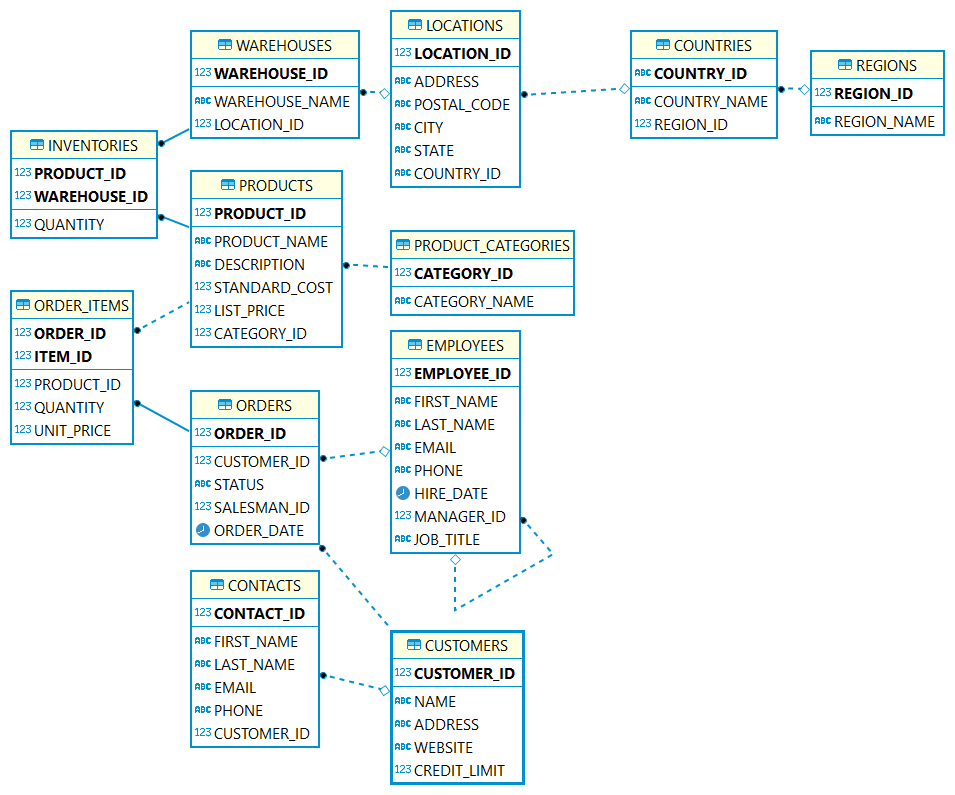
SAMPLEDB is an inventory database with 12 tables. It maintains data about product inventory and orders from customers. In this table you can see details for each table:
|
Table |
Description |
| REGIONS | Continents in the world (Asia, Africa, etc) |
| COUNTRIES | Countries where the company works |
| CUSTOMERS | Clients of the company |
| CONTACTS | Email and phone of the clients |
| EMPLOYEES | Salespeople |
| PRODUCT_CATEGORIES | Product Type (CPU, RAM, Storage, etc.) |
| PRODUCTS | Product items from the sales catalog (HD Disk, Computers, etc.) |
So, the migration process from Oracle Database to IRIS will include 10 tables and the migration destination will be the dc_test schema inside the USER namespace in the InterSystems IRIS database.
About this docker project
This docker-compose project consists of two database images. Check out the definition beneath:
services:
    oracle: #from https://geraldonit.com/2021/08/15/oracle-xe-docker-images/ and https://oralytics.com/2021/10/01/oracle-21c-xe-database-and-docker-setup/
      image: gvenzl/oracle-xe:latest
      container_name: oracle21c
      ports:
      - "15210:1521"
      environment:
      - ORACLE_PASSWORD=Welcome1
      volumes:
      - ./init_scripts:/container-entrypoint-initdb.d
    iris:
      build:
        context: .
        dockerfile: Dockerfile
      restart: always
      environment:
        - ISC_CPF_MERGE_FILE=/home/irisowner/dev/merge.cpf
      ports:
        - 1972:1972
        - 52773
        - 53773
      volumes:
        - ./:/home/irisowner/dev
The IRIS container definition creates an IRIS database exposing the superport 1972 as 1972 to the host and the other ports as the same port number.
The Oracle container definition creates an Oracle Database 21c Express Edition (an edition employed for the development of environments; it is similar to the IRIS community edition) exposing it on the port 15210. The image used is gvenzl/oracle-xe:latest. The documentation and source code for this image are defined on https://github.com/gvenzl/oci-oracle-xe. It also allows you to work with different Oracle database versions. Check out the available versions:
- latest, 21, 21.3.0, latest-faststart, 21-faststart, 21.3.0-faststart
- slim, 21-slim, 21.3.0-slim, slim-faststart, 21-slim-faststart, 21.3.0-slim-faststart
- full, 21-full, 21.3.0-full, full-faststart, 21-full-faststart, 21.3.0-full-faststart
- 18, 18.4.0, 18-faststart, 18.4.0-faststart
- 18-slim, 18.4.0-slim, 18-slim faststart, 18.4.0-slim-faststart
- 18-full, 18.4.0-full, 18-full-faststart, 18.4.0-full-faststart,
- 11, 11.2.0.2, 11-faststart, 11.2.0.2-faststart
- 11-slim, 11.2.0.2-slim, 11-slim-faststart, 11.2.0.2-slim-faststart
- 11-full, 11.2.0.2-full, 11-full-faststart, 11.2.0.2-full-faststart
The latest version is the 21c version, but is possible to work with legacy versions such as the version 11g too. There are also some flavors available to you, but if you do not choose a flavor, the full flavor will be used. The following table detaisl the flavors:
|
Flavor |
Extension |
Description |
Use cases |
| Slim | -slim | An image focussed on the smallest possible image size instead of additional functionality. | Wherever small images sizes are important but advanced functionality of Oracle Database is not needed. |
| Regular | [None] | A well-balanced image when it comes to image size and functionality. Recommended for most use cases. | Recommended for most use cases. |
| Full | -full | An image containing all functionality as provided by the Oracle Database installation. | Best for extensions and/or customizations. |
| FastStart | *-faststart | The same image flavor as above but with an already expanded and ready-to-go database inside the image. This image trades image size on disk for a faster database startup time. | Best for (automated) test scenarios where the image is only pulled once, but many containers are started and torn down. |
Loading the sample database on database creation
The gvenzl/oracle-xe docker image allows you to execute sql files on the database creation. To do it, you must copy the SQL files to the /container-entrypoint-initdb.d folder. On this sample the folder init_scripts was mapped to /container-entrypoint-initdb.d folder. So the file /init_scripts/sampledb.sql will be executed on the database creation and will create a sample database that will be used as a source database to be migrated. This script has the user, database and tables creation and the data to be inserted into the tables.
An Open-source tool to migrate from Oracle to IRIS: DBeaver
DBeaver is a database tool used to connect, create, drop, select, update and delete data objects to the main database products in the market. Download it from: https://dbeaver.io/download/. Now follow the installation instructions to get this fantastic product into your laptop or desktop.
DBeaver can be used to migrate data between database connections, even if they come from different manufacturers and versions.
Before Open DBeaver, increase memory settings
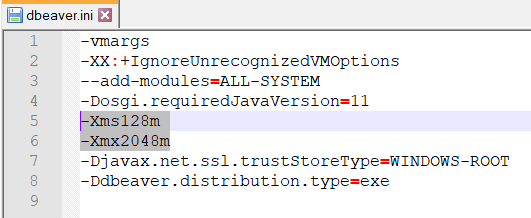
Before open Dbeaver, it will be necessary to increase memory allocation, because the memory resources requirements for the migration. Follow these steps:
- Locate DBeaver folder installation (in my machine is C:\Program Files\DBeaver)
- Edit the file dbeaver.ini and increase Xms and Xmx values with 128m and 2048m (double from the original values). See an example:
Connecting the Source and Target Databases using the DBeaver
Now we will set the database connections to be migrated.
To set Oracle Database connection to the DBeaver:
- In the DBeaver Go to File > New.
- Select Database Connection and click Next:

- Choose SQL tab > Oracle and click next:

- Fill the Oracle connection fields as shown in this picture:

- Host: localhost
- Port: 1521
- Database: XE
- Username: sys
- Password: Welcome1
- Role: SYSDBA
- Client: <not present>
- Click Finish.
To set InterSystems IRIS connection to the DBeaver:
- In the DBeaver Go to File > New.
- Select Database Connection and click Next:
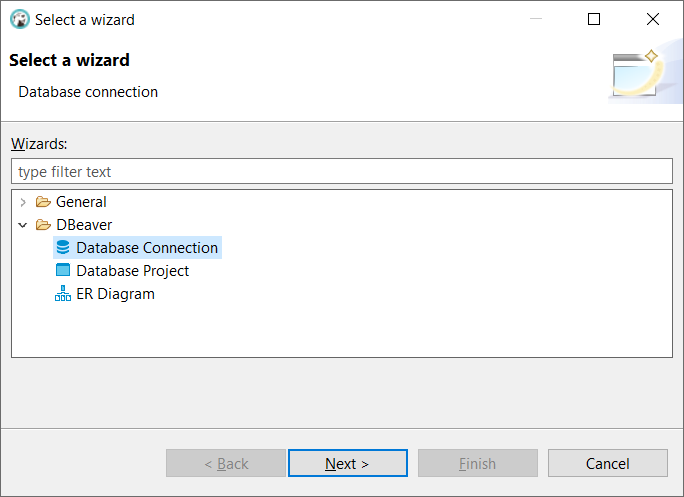
- Choose SQL tab > InterSystems IRIS and click next:

- If DBeaver requests to download the InterSystems IRIS driver, press Yes or Ok.
- Set the InterSystems IRIS connection fields as demonstrated in this picture:
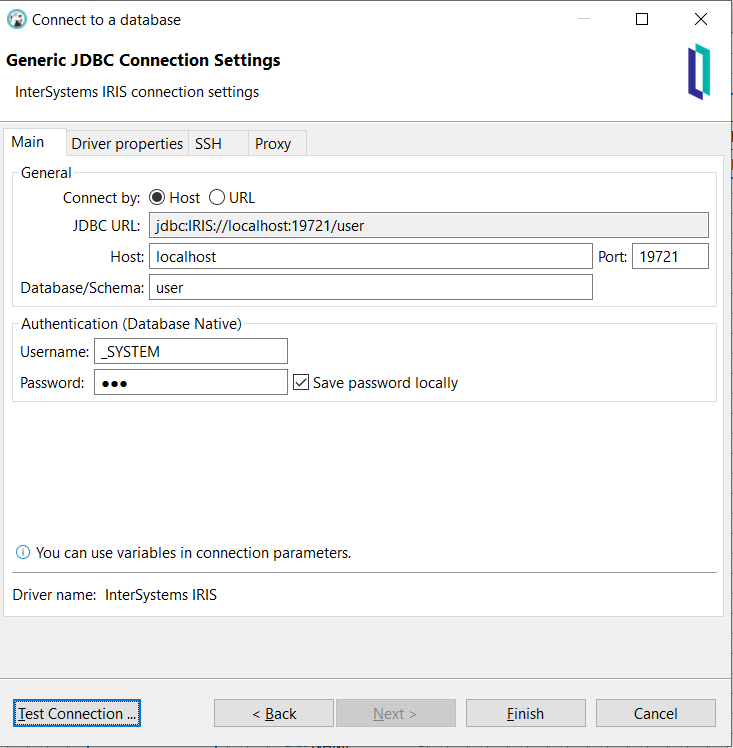
- Host: localhost
- Database/Schema: user
- Port: 19721
- Username: _SYSTEM
- Password: SYS
- Click Test Connection and OK.
The connections (localhost and user) are available in the Database Navigator:

Do the migration
To do the migration, follow these steps:
- Expand the Oracle connection > Schemas > SAMPLEDB > Tables and select all tables. Right-click the selected tables and choose Export Data, as illustrated in this image:

- Select Database, as displayed in this illustration, and and click Next:

- Click the Choose button:

- Select dc_sample and click Ok.

- You must change all ID fields from the data type NUMERIC to INTEGER. To do it, first select and expand a table, then choose the field you need and click Customise..:

- Change the Target Type from NUMERIC to INTEGER and click Ok.

- Repeat the same process (change the data type from) with the following fields:
|
Table |
Field |
| SAMPLEDB.CONTACTS | CONTACT_ID |
| SAMPLEDB.CONTACTS | CUSTOMER_ID |
| SAMPLEDB.COUNTRIES | REGION_ID |
| SAMPLEDB.CUSTOMERS | CUSTOMER_ID |
| SAMPLEDB.EMPLOYEES | EMPLOYEE_ID |
| SAMPLEDB.EMPLOYEES | MANAGER_ID |
| SAMPLEDB.INVENTORIES | PRODUCT_ID |
| SAMPLEDB.INVENTORIES | WAREHOUSE_ID |
| SAMPLEDB.LOCATIONS | LOCATION_ID |
| SAMPLEDB.ORDERS | ORDER_ID |
| SAMPLEDB.ORDERS | CUSTOMER_ID |
| SAMPLEDB.ORDERS | SALESMAN_ID |
| SAMPLEDB.ORDER_ITEMS | ORDER_ID |
| SAMPLEDB.ORDER_ITEMS | ITEM_ID |
| SAMPLEDB.ORDER_ITEMS | PRODUCT_ID |
| SAMPLEDB.PRODUCTS | PRODUCT_ID |
| SAMPLEDB.PRODUCTS | CATEGORY_ID |
| SAMPLEDB.PRODUCT_CATEGORIES | CATEGORY_ID |
| SAMPLEDB.REGIONS | REGION_ID |
| SAMPLEDB.WAREHOUSES | WAREHOUSE_ID |
| SAMPLEDB.WAREHOUSES | LOCATION_ID |
- You also need to change the types of the following fields from numeric to double:
| Table | Field |
| SAMPLEDB.CUSTOMERS | CREDIT_LIMIT |
| SAMPLEDB.INVENTORIES | QUANTITY |
| SAMPLEDB.ORDER_ITEMS | QUANTITY |
| SAMPLEDB.ORDER_ITEMS | UNIT_PRICE |
| SAMPLEDB.PRODUCTS | STANDARD_COST |
| SAMPLEDB.PRODUCTS | LIST_PRICE |
- Now, when the Target Data Types have been changed, click Next.

- Set the Fetch size to 1000000 and click Next.

- Accept the default values in the Data load settings and click Next.

- In the Confirm click Proceed.

- Now you can see all Oracle Tables inside InterSystems IRIS dc_sample schema in the Database Navigator.

The migration process is very simple for tables, but for views, functions, triggers, and stored procedures, you will need to rewrite the SQL source code using ObjectScript or SQL.
An alternative
An alternative is to generate an SQL file with table creation and with the data to be inserted using Oracle EM (Enterprise Manager). To execute this file use:
DO $SYSTEM.SQL.Schema.ImportDDL($lb("C:\temp\somesql.sql","UTF8"),,"ORACLE")Review the documentation about this option here:
https://docs.intersystems.com/iris20221/csp/docbook/Doc.View.cls?KEY=GSQL_import
This is the last article from the series, but other databases have a similar approach. Enjoy!